
- Why Regular Data Recovery Tools Can’t Restore Files from RAID
- Key Information About the NAS Buffalo DriveStation Duo
- How to Remove Hard Disks from Your NAS and Connect Them to a PC
Why Regular Data Recovery Tools Can’t Restore Files from RAID
Conventional hard drives store user data by writing it sequentially across the disk surface, which means an entire file is typically located on a single drive. In contrast, when data is written to a RAID array, each file is split into multiple fragments. These fragments are then distributed and written in sequence across all the drives in the array. Depending on the configuration, fragment sizes can range from 2 KB to 2 MB, so every file is physically stored across several disks at once.
This approach significantly increases read and write performance — after all, writing two halves of a 1 GB file to two drives simultaneously is much faster than writing the full 1 GB to a single disk. However, this same mechanism makes file recovery far more complex.
Different RAID levels use different methods to distribute and protect data. On top of that, manufacturers like Buffalo often add their own proprietary structures and variations. As a result, data can be written to disks in many different formats, and each requires a specific approach during recovery.
How can file system corruption impact data integrity on NAS Buffalo DriveStation Duo devices?
File system corruption can have a significant impact on data integrity on NAS Buffalo DriveStation Duo devices. Here are some ways it can affect data:
- Data Loss: File system corruption can lead to the loss of data stored on the NAS device. This can occur due to the inability to access or retrieve files, or even complete data corruption resulting in the files becoming unreadable or unusable.
- Data Inconsistency: Corruption in the file system can cause data inconsistencies, where the information stored on the NAS device does not match the expected or original state. This can result in errors, missing or incorrect data, and difficulties in data synchronization or replication.
- File System Errors: Corruption can lead to various file system errors, such as invalid file or directory structures, cross-linked files, or orphaned files. These errors can prevent proper file access, organization, and management, leading to data integrity issues.
- System Instability: File system corruption can cause the NAS device to become unstable or crash frequently. This instability can lead to data integrity problems as files may not be saved correctly or become corrupted during unexpected system shutdowns or restarts.
- Difficult Data Recovery: In cases of severe file system corruption, data recovery becomes challenging or even impossible. Corrupted file systems may hinder the effectiveness of data recovery tools or services, making it difficult to retrieve lost or damaged data.
To mitigate the impact of file system corruption on data integrity, it is crucial to regularly back up data, implement reliable and up-to-date file system monitoring and maintenance practices, and promptly address any signs of file system issues or errors. Additionally, using RAID configurations and redundant storage systems can provide an extra layer of protection against data loss due to file system corruption.
How to Remove Hard Disks from Your NAS and Connect Them to a PC
Although the NAS DriveStation Duo can be accessed over the network, you still need to remove its hard disks and connect them directly to a Windows PC. Only then can the recovery software properly scan and analyze the drives. Follow these steps:
-
Power off the NAS and disconnect it from the power source.
WARNING! Before removing any drives, carefully read the device manual. Improper actions may damage both the NAS enclosure and the hard disks in the RAID array.
-
Remove the hard disks one by one, gently sliding each drive out of its slot. Remember that hard disks are highly sensitive: any impact or drop can cause serious physical damage.
-
Label each hard disk according to its position inside the NAS. The order of the drives is crucial for correct RAID reconstruction.
-
Connect the drives to your computer. In this video, we explain which ports you can use to connect hard disks and what to do if your PC does not have enough free connectors.
Go to view
Step-by-Step Data Recovery with Hetman RAID Recovery

This program restores data from damaged RAID arrays and is fully compatible with Buffalo DriveStation Duo. Each hard disk in the array contains technical metadata describing how files were written. When launched, Hetman RAID Recovery analyzes this metadata, automatically reconstructs the damaged array, and provides access to its contents. After that, you can browse the recovered disk and save your files. The program can also restore files that were accidentally deleted from the network drive.
How to recover data from a Buffalo
DriveStation Duo has 1 HDD slots, and it supports the following array types:
- RAID 0;
- RAID 1;
- JBOD;
NAS supports:
- exFAT, VFAT, FAT 12 / 16 / 32;
- NTFS / ReFS;
- APFS / HFS+;
- Ext2 / 3 / 4 / ReiserFS / XFS / UFS / ZFS / Btrfs;
- VMFS / HikvisionFS;
How to Safely Recover Data from Disk Images
This utility allows you to create a complete copy of a disk and work with the disk image instead of the physical drive. This approach helps protect your data from:
- Overwriting during the recovery process;
- Additional data loss caused by bad sectors;
- User errors.
To create a disk image, follow these steps:
-
Ensure you have enough free space to store the image. Its size will typically match the size of the original disk.
-
In the main window, select the target disk and choose Tools - Save Disk. You can also select multiple disks if needed.
-
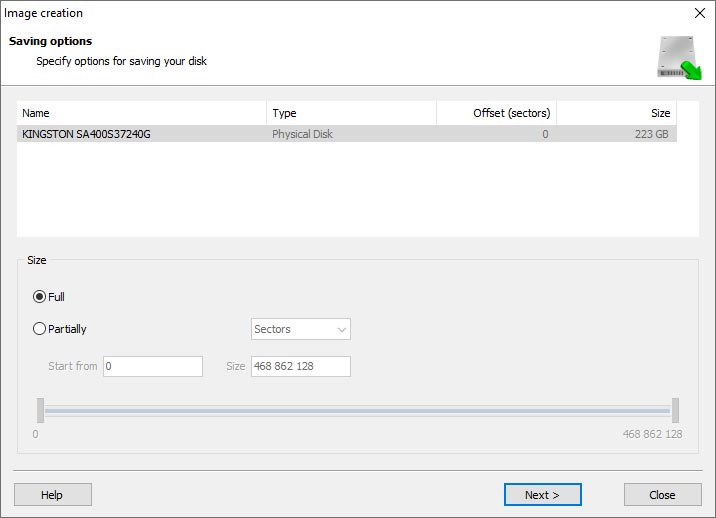
When the Image Creation Wizard opens, select whether you want to save the entire disk or only a specific region. Adjust the settings and click Next.
-
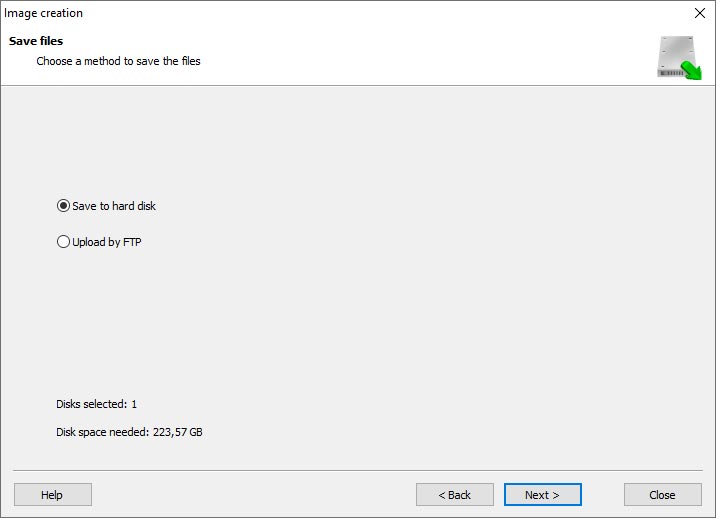
Choose the directory where the image will be saved. You may select any available disk connected to your PC or upload the image via FTP.


Where Are the User’s Files Actually Stored?
The Buffalo DriveStation Duo network-attached storage keeps OS Linux operating system files on a separate RAID 1 (mirrored) array. Usually, all NAS systems create several volumes on every hard disk, and the first of them takes up to 2 Gb of space. This is where operating system files are stored. Other volumes are united into a RAID array where user’s data is written.
RAID Recovery Software: Detailed Comparison
| Product | Operating system | RAID controller support | Supported file systems | Virtual RAID controller support | Data recovery from damaged RAID | File preview |
|---|---|---|---|---|---|---|
| Hetman RAID Recovery | Windows, Linux, MacOS | Yes, over 100 controllers | FAT, exFAT, NTFS, ReFS, APFS, HFS+, Ext4, Ext3, Ext2, ReiserFS, Btrfs, VMFS, Hikvision, XFS, UFS, ZFS | Yes | Yes | Yes |
| DiskInternals RAID Recovery | Windows | Yes, over 10 controllers | FAT, NTFS, Ext2/3/4, HFS+ | No | Yes | Yes |
| R-Studio | Windows, Mac, Linux | Yes, over 20 controllers | FAT, NTFS, Ext2/3/4, HFS+ | Yes | Yes | Yes |
| UFS Explorer RAID Recovery | Windows, Mac, Linux | Yes, over 100 controllers | FAT, NTFS, Ext2/3/4, HFS+ | Yes | Yes | Yes |
| EaseUS Data Recovery | Windows | Yes, over 20 controllers | FAT, NTFS, Ext2/3/4, HFS+ | No | Yes | Yes |
| ReclaiMe Free RAID Recovery | Windows | Yes, over 100 controllers | FAT, NTFS, Ext2/3/4, HFS+ | Yes | Yes | Yes |



Yes, it is possible to recover data from a NAS Buffalo DriveStation Duo device that has suffered a power loss or sudden shutdown. In such cases, the first step is to ensure that the device is properly powered off and disconnected from the power source to prevent any further damage.
After that, you can try the following steps to recover the data:
Remember to always create backups of important data to prevent data loss in case of unexpected events like power loss or sudden shutdowns.