Choosing Data Recovery Software for Lost NAS Buffalo TeraStation TS3420RN0804 Data: Complete Guide

Has your NAS Buffalo TeraStation TS3420RN0804 suddenly lost its network drive and you’re unsure what to do next? Did the RAID array collapse, making your files inaccessible? Is the device throwing errors during startup? Perhaps you accidentally rebuilt the RAID array or several hard drives failed at the same time?

Choosing Data Recovery Software for Lost NAS Buffalo TeraStation TS3420RN0804 Data: Complete Guide

Buffalo TeraStation TS3420RN0804 NAS Data Recovery in 2025

In this step-by-step tutorial, we’ll show you how to rebuild your RAID and recover data from an TeraStation TS3420RN0804. We’ll walk through the most common causes of failure and demonstrate proven methods to restore files from a lost or degraded RAID array.

Choosing Data Recovery Software for Lost NAS Buffalo TeraStation TS3420RN0804 Data: Complete Guide

RAID Recovery™ 2.8
Recover data from damaged RAID arrays inaccessible from a computer.
Download

Why Regular Data Recovery Tools Can’t Restore Files from RAID

Conventional hard drives store user data by writing it sequentially across the disk surface, which means an entire file is typically located on a single drive. In contrast, when data is written to a RAID array, each file is split into multiple fragments. These fragments are then distributed and written in sequence across all the drives in the array. Depending on the configuration, fragment sizes can range from 2 KB to 2 MB, so every file is physically stored across several disks at once.

This approach significantly increases read and write performance — after all, writing two halves of a 1 GB file to two drives simultaneously is much faster than writing the full 1 GB to a single disk. However, this same mechanism makes file recovery far more complex.

Different RAID levels use different methods to distribute and protect data. On top of that, manufacturers like Buffalo often add their own proprietary structures and variations. As a result, data can be written to disks in many different formats, and each requires a specific approach during recovery.

Can device firmware rollback or downgrading impact data loss risks for NAS Buffalo TeraStation TS3420RN0804 devices?

Yes, device firmware rollback or downgrading can potentially impact data loss risks for NAS Buffalo TeraStation TS3420RN0804 devices. When you perform a firmware rollback or downgrade, there is a chance that the process may not be successful or may encounter errors, which can lead to data corruption or loss.

Additionally, firmware updates often include important bug fixes, security patches, and performance improvements. By downgrading or rolling back the firmware, you may be exposing your device to known vulnerabilities or issues that were addressed in the newer firmware version.

It is always recommended to take proper precautions before performing any firmware update or rollback, such as backing up your data and ensuring you have a reliable power source during the process.

How to Remove Hard Disks from Your NAS and Connect Them to a PC

Although the NAS TeraStation TS3420RN0804 can be accessed over the network, you still need to remove its hard disks and connect them directly to a Windows PC. Only then can the recovery software properly scan and analyze the drives. Follow these steps:

  1. Power off the NAS and disconnect it from the power source.

    WARNING! Before removing any drives, carefully read the device manual. Improper actions may damage both the NAS enclosure and the hard disks in the RAID array.

  2. Remove the hard disks one by one, gently sliding each drive out of its slot. Remember that hard disks are highly sensitive: any impact or drop can cause serious physical damage.

  3. Label each hard disk according to its position inside the NAS. The order of the drives is crucial for correct RAID reconstruction.

  4. Connect the drives to your computer. In this video, we explain which ports you can use to connect hard disks and what to do if your PC does not have enough free connectors.

    Go to view

    How to Order Remote Data Recovery

    How to Order Remote Data Recovery

Step-by-Step Data Recovery with Hetman RAID Recovery

Hetman Raid Recovery

This program restores data from damaged RAID arrays and is fully compatible with Buffalo TeraStation TS3420RN0804. Each hard disk in the array contains technical metadata describing how files were written. When launched, Hetman RAID Recovery analyzes this metadata, automatically reconstructs the damaged array, and provides access to its contents. After that, you can browse the recovered disk and save your files. The program can also restore files that were accidentally deleted from the network drive.

Go to view
How to recover data from a Buffalo

How to recover data from a Buffalo

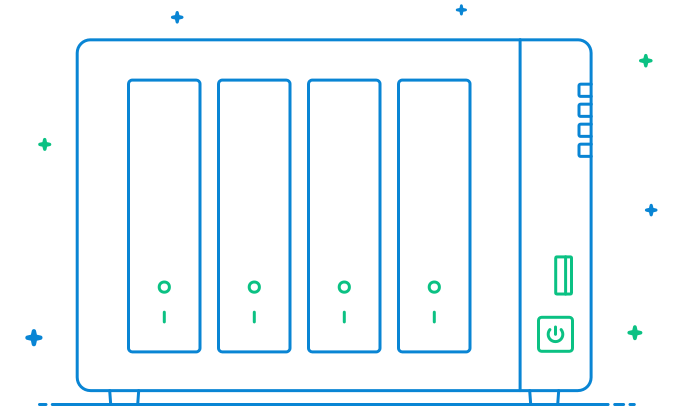
TeraStation TS3420RN0804 has 4 HDD slots, and it supports the following array types:

  • RAID 0;
  • RAID 1;
  • RAID 5;
  • RAID 6;
  • JBOD;

NAS supports:

  • exFAT, VFAT, FAT 12 / 16 / 32;
  • NTFS / ReFS;
  • APFS / HFS+;
  • Ext2 / 3 / 4 / ReiserFS / XFS / UFS / ZFS / Btrfs;
  • VMFS / HikvisionFS;

How to Safely Recover Data from Disk Images

This utility allows you to create a complete copy of a disk and work with the disk image instead of the physical drive. This approach helps protect your data from:

  • Overwriting during the recovery process;
  • Additional data loss caused by bad sectors;
  • User errors.

To create a disk image, follow these steps:

  1. Ensure you have enough free space to store the image. Its size will typically match the size of the original disk.

  2. In the main window, select the target disk and choose Tools - Save Disk. You can also select multiple disks if needed.

  3. When the Image Creation Wizard opens, select whether you want to save the entire disk or only a specific region. Adjust the settings and click Next.
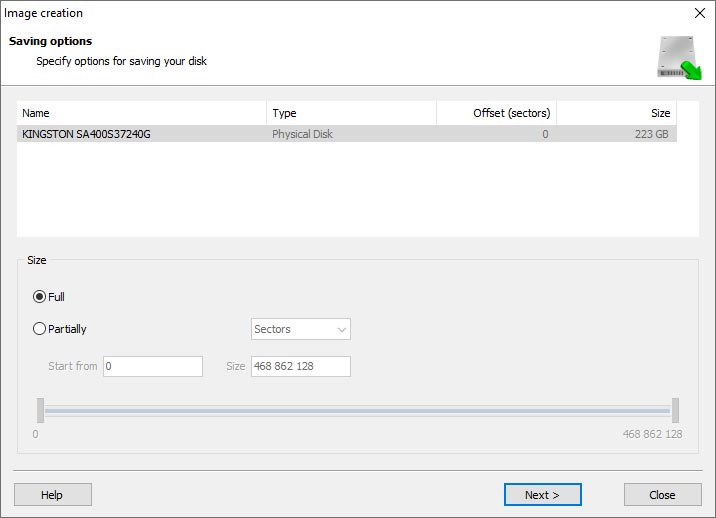
    Hetman RAID Recovery: Image Creation Wizard
  4. Choose the directory where the image will be saved. You may select any available disk connected to your PC or upload the image via FTP.
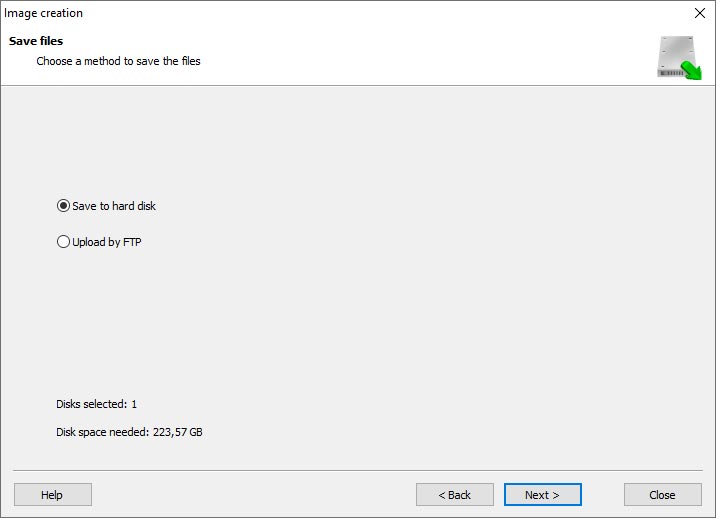
    Hetman RAID Recovery: Choose a disk or save the image via FTP

Where Are the User’s Files Actually Stored?

The Buffalo TeraStation TS3420RN0804 network-attached storage keeps OS Linux operating system files on a separate RAID 1 (mirrored) array. Usually, all NAS systems create several volumes on every hard disk, and the first of them takes up to 2 Gb of space. This is where operating system files are stored. Other volumes are united into a RAID array where user’s data is written.

RAID Recovery Software: Detailed Comparison

Product Operating system RAID controller support Supported file systems Virtual RAID controller support Data recovery from damaged RAID File preview
Hetman RAID Recovery Windows, Linux, MacOS Yes, over 100 controllers FAT, exFAT, NTFS, ReFS, APFS, HFS+, Ext4, Ext3, Ext2, ReiserFS, Btrfs, VMFS, Hikvision, XFS, UFS, ZFS Yes Yes Yes
DiskInternals RAID Recovery Windows Yes, over 10 controllers FAT, NTFS, Ext2/3/4, HFS+ No Yes Yes
R-Studio Windows, Mac, Linux Yes, over 20 controllers FAT, NTFS, Ext2/3/4, HFS+ Yes Yes Yes
UFS Explorer RAID Recovery Windows, Mac, Linux Yes, over 100 controllers FAT, NTFS, Ext2/3/4, HFS+ Yes Yes Yes
EaseUS Data Recovery Windows Yes, over 20 controllers FAT, NTFS, Ext2/3/4, HFS+ No Yes Yes
ReclaiMe Free RAID Recovery Windows Yes, over 100 controllers FAT, NTFS, Ext2/3/4, HFS+ Yes Yes Yes

Feedback

We will be happy to answer your questions!

Comments (3)

  • Hetman Software: Data Recovery
    Hetman Software: Data Recovery 9.08.2022 12:31 #
    If you want to ask a question about data recovery, from NAS TeraStation TS3420RN0804, feel free to leave a comment!
  • Max Colgate
    Max Colgate 2.09.2023 02:45 #
    Is it possible to recover data from a NAS Buffalo TeraStation TS3420RN0804 device that has been affected by a controller failure or disk array problem?
    • Hetman Software
      Hetman Software 2.09.2023 03:00 #

      Yes, it is possible to recover data from a NAS Buffalo TeraStation TS3420RN0804 device that has been affected by a controller failure or disk array problem. However, the process of data recovery can be complex and may require the assistance of a professional data recovery service.

      Here are some steps you can take to recover data from a NAS Buffalo TeraStation device:

      1. Check for physical damage: Ensure that the device is not physically damaged and all connections are secure.
      2. Replace faulty components: If the controller or disks are causing the problem, you may need to replace them with new ones. Consult the device's manual or contact Buffalo support for guidance on replacing components.
      3. Seek professional help: If you are not confident in performing the recovery process yourself, it is recommended to contact a professional data recovery service. They have the expertise and specialized tools to recover data from a failed NAS device.
      4. Data recovery process: The data recovery service will typically assess the extent of the damage and attempt to repair or rebuild the RAID array if necessary. They may also use specialized software and techniques to extract data from the disks.

      Note: It is important to avoid any further attempts to recover data on your own if you are not experienced in data recovery. Incorrect actions can potentially cause further damage and make data recovery more difficult or even impossible.

Post comment
User
Your email address will not be published. Required fields are marked *

Vladimir Artiukh

Author: Vladimir Artiukh, Technical Writer

Vladimir Artiukh is a technical writer for Hetman Software, as well as the voice and face of their English-speaking YouTube channel, Hetman Software: Data Recovery for Windows. He handles tutorials, how-tos, and detailed reviews on how the company’s tools work with all kinds of data storage devices.

Oleg Afonin

Editor: Oleg Afonin, Technical Writer

Oleg Afonin is an expert in mobile forensics, data recovery and computer systems. He often attends large data security conferences, and writes several blogs for such resources as xaker.ru, Elcomsoft and Habr. In addition to his online activities, Oleg’s articles are also published in professional magazines. Also, Oleg Afonin is the co-author of a well-known book, Mobile Forensics - Advanced Investigative Strategies.

Share

Questions and answers

  • How does the NAS Buffalo TeraStation TS3420RN0804 facilitate the process of copying data from different devices?

    The NAS Buffalo TeraStation TS3420RN0804 facilitates the process of copying data from different devices through various methods:

    1. Network File Sharing: The TeraStation TS3420RN0804 acts as a central storage device on the network, allowing different devices such as computers, laptops, or mobile devices to connect and access the shared folders. Users can simply copy and paste or drag and drop files from their devices to the TeraStation using the network file sharing protocols like SMB/CIFS, AFP, or NFS.
    2. USB Connectivity: The TeraStation TS3420RN0804 is equipped with multiple USB ports, enabling users to connect external storage devices directly to the NAS. By connecting a USB flash drive, external hard drive, or any other USB storage device, users can copy data from these devices to the TeraStation, or vice versa, by using the NAS management interface.
    3. Cloud Integration: The TeraStation TS3420RN0804 offers cloud integration capabilities, allowing users to copy data from different devices to popular cloud storage services like Dropbox, Google Drive, or Amazon S3. With the NAS management interface, users can configure cloud backups or sync folders between the TeraStation and cloud storage, making it easier to transfer data from various devices.
    4. Remote Access: The TeraStation TS3420RN0804 supports remote access, enabling users to copy data from their devices even when they are not physically present in the network. By using the Buffalo WebAccess or other remote access methods, users can securely connect to the TeraStation from anywhere and copy files to or from their devices.

    Overall, the NAS Buffalo TeraStation TS3420RN0804 provides multiple options for copying data from different devices, including network file sharing, USB connectivity, cloud integration, and remote access. This allows for seamless and convenient data transfer and backup processes.

  • What are the key features and capabilities of the NAS Buffalo TeraStation TS3420RN0804 that make it an effective tool for data copying?

    The NAS Buffalo TeraStation TS3420RN0804 offers several key features and capabilities that make it an effective tool for data copying:

    1. High Storage Capacity: The TS3420RN0804 comes with a total storage capacity of 8TB, which can be expanded up to 128TB. This large storage capacity allows for the efficient copying of large amounts of data.
    2. RAID Support: The NAS supports various RAID levels, including RAID 0, 1, 5, 6, 10, and JBOD. This provides data redundancy and protection against drive failures, ensuring the safety of copied data.
    3. Hot-Swappable Drives: The TS3420RN0804 features hot-swappable drive bays, allowing for easy replacement or expansion of drives without the need to power down the system. This feature enhances the convenience and flexibility of data copying.
    4. High-Speed Data Transfer: With its dual-core Annapurna Labs Alpine AL-314 processor and 4GB of DDR3 RAM, the NAS offers fast data transfer speeds. This enables quick and efficient copying of data, reducing the time required for the process.
    5. Multiple Connectivity Options: The TS3420RN0804 supports multiple connectivity options, including two Gigabit Ethernet ports and two USB 3.0 ports. This allows for seamless integration into existing network infrastructure and facilitates easy copying of data from various sources.
    6. Backup and Synchronization: The NAS comes with built-in backup and synchronization capabilities. It supports various backup methods, including scheduled backups, replication to another TeraStation device, and cloud backup to services like Amazon S3 or Dropbox. This ensures data integrity and provides additional protection against data loss.
    7. User-Friendly Interface: The NAS features an intuitive web-based interface that simplifies the management and configuration of the device. This user-friendly interface makes it easy to set up data copying tasks and monitor their progress.

    Overall, the NAS Buffalo TeraStation TS3420RN0804 offers a combination of high storage capacity, data redundancy, fast data transfer speeds, and convenient features that make it an effective tool for data copying.

  • Can the NAS Buffalo TeraStation TS3420RN0804 copy data from various devices simultaneously, and what are the potential limitations or considerations when using this feature?

    Yes, the NAS Buffalo TeraStation TS3420RN0804 can copy data from various devices simultaneously. It supports multiple data transfer protocols and can handle multiple data streams at once.

    However, there are a few potential limitations and considerations when using this feature:

    1. Bandwidth: The NAS device has a limited network bandwidth, so copying data from multiple devices simultaneously may result in slower transfer speeds for each device. If the network becomes saturated, the transfer speeds may be significantly reduced.
    2. Processing power: Copying data from multiple devices simultaneously requires processing power from the NAS device. If the device is not powerful enough, it may struggle to handle the simultaneous data transfers, leading to slower performance.
    3. Disk I/O: The NAS device has a limited number of hard drives and disk I/O capabilities. If multiple devices are copying data simultaneously, it may increase the disk I/O load, potentially causing slower performance or increased latency.
    4. Network congestion: If multiple devices are copying data simultaneously, it can create network congestion, especially if all devices are connected to the same network switch. This congestion can impact the performance of other network services and devices.

    To mitigate these limitations, it is recommended to:

    • Ensure that the NAS device has sufficient processing power and network bandwidth to handle simultaneous data transfers.
    • Consider using a Gigabit Ethernet network infrastructure to maximize network speeds.
    • Schedule data transfers during off-peak hours to minimize network congestion.
    • Monitor the NAS device's performance and adjust settings if necessary to optimize performance.

    Overall, while the NAS Buffalo TeraStation TS3420RN0804 can copy data from various devices simultaneously, it is important to consider the limitations and plan accordingly to ensure optimal performance.
