RAID Array Recovery Guide for NAS Buffalo TeraStation TS5810DN9608: Essential Data Recovery Steps

Has your NAS Buffalo TeraStation TS5810DN9608 suddenly lost its network drive and you’re unsure what to do next? Did the RAID array collapse, making your files inaccessible? Is the device throwing errors during startup? Perhaps you accidentally rebuilt the RAID array or several hard drives failed at the same time?

RAID Array Recovery Guide for NAS Buffalo TeraStation TS5810DN9608: Essential Data Recovery Steps

Buffalo TeraStation TS5810DN9608 NAS Data Recovery in 2025

In this step-by-step tutorial, we’ll show you how to rebuild your RAID and recover data from an TeraStation TS5810DN9608. We’ll walk through the most common causes of failure and demonstrate proven methods to restore files from a lost or degraded RAID array.

RAID Array Recovery Guide for NAS Buffalo TeraStation TS5810DN9608: Essential Data Recovery Steps

RAID Recovery™ 2.8
Recover data from damaged RAID arrays inaccessible from a computer.
Download

Why Regular Data Recovery Tools Can’t Restore Files from RAID

Conventional hard drives store user data by writing it sequentially across the disk surface, which means an entire file is typically located on a single drive. In contrast, when data is written to a RAID array, each file is split into multiple fragments. These fragments are then distributed and written in sequence across all the drives in the array. Depending on the configuration, fragment sizes can range from 2 KB to 2 MB, so every file is physically stored across several disks at once.

This approach significantly increases read and write performance — after all, writing two halves of a 1 GB file to two drives simultaneously is much faster than writing the full 1 GB to a single disk. However, this same mechanism makes file recovery far more complex.

Different RAID levels use different methods to distribute and protect data. On top of that, manufacturers like Buffalo often add their own proprietary structures and variations. As a result, data can be written to disks in many different formats, and each requires a specific approach during recovery.

Are there any known limitations or performance bottlenecks that can increase data loss risks for NAS Buffalo TeraStation TS5810DN9608 devices?

There are a few known limitations and performance bottlenecks that can potentially increase data loss risks for NAS Buffalo TeraStation TS5810DN9608 devices. Some of these include:

  1. Drive Failure: Like any storage device, the TeraStation TS5810DN9608 is susceptible to drive failures. If multiple drives fail simultaneously or within a short period, it can result in data loss. Regular backups and RAID configurations can help mitigate this risk.
  2. Network Congestion: If the network bandwidth is limited or congested, it can impact the performance of the NAS device. This can lead to slower data transfers and potential data loss if files are not properly written or copied.
  3. Insufficient Cooling: NAS devices generate heat, and if the cooling system is inadequate or fails, it can cause the drives to overheat. Overheating can lead to premature drive failure and data loss. Ensuring proper ventilation and cooling for the device is essential.
  4. Power Interruptions: Sudden power outages or fluctuations can cause data corruption or loss if the NAS device is not equipped with a reliable uninterruptible power supply (UPS) or if the device does not have proper power management features.
  5. Firmware or Software Issues: Occasionally, firmware or software updates can introduce bugs or compatibility issues that may result in data loss. It is important to keep the device's firmware up to date and monitor for any reported issues or vulnerabilities.
  6. User Error: Accidental deletion, formatting, or modification of files by users can lead to data loss. Implementing proper access controls, user training, and regular backups can help mitigate this risk.

It is worth noting that Buffalo TeraStation devices generally have robust features and reliability, but these limitations and bottlenecks should be considered to minimize data loss risks.

How to Remove Hard Disks from Your NAS and Connect Them to a PC

Although the NAS TeraStation TS5810DN9608 can be accessed over the network, you still need to remove its hard disks and connect them directly to a Windows PC. Only then can the recovery software properly scan and analyze the drives. Follow these steps:

  1. Power off the NAS and disconnect it from the power source.

    WARNING! Before removing any drives, carefully read the device manual. Improper actions may damage both the NAS enclosure and the hard disks in the RAID array.

  2. Remove the hard disks one by one, gently sliding each drive out of its slot. Remember that hard disks are highly sensitive: any impact or drop can cause serious physical damage.

  3. Label each hard disk according to its position inside the NAS. The order of the drives is crucial for correct RAID reconstruction.

  4. Connect the drives to your computer. In this video, we explain which ports you can use to connect hard disks and what to do if your PC does not have enough free connectors.

    Go to view

    How to Order Remote Data Recovery

    How to Order Remote Data Recovery

Step-by-Step Data Recovery with Hetman RAID Recovery

Hetman Raid Recovery

This program restores data from damaged RAID arrays and is fully compatible with Buffalo TeraStation TS5810DN9608. Each hard disk in the array contains technical metadata describing how files were written. When launched, Hetman RAID Recovery analyzes this metadata, automatically reconstructs the damaged array, and provides access to its contents. After that, you can browse the recovered disk and save your files. The program can also restore files that were accidentally deleted from the network drive.

Go to view
How to recover data from a Buffalo

How to recover data from a Buffalo

TeraStation TS5810DN9608 has 4 HDD slots, and it supports the following array types:

  • RAID 0;
  • RAID 1;
  • RAID 5;
  • RAID 6;
  • RAID 50;
  • RAID 60;
  • JBOD;

NAS supports:

  • exFAT, VFAT, FAT 12 / 16 / 32;
  • NTFS / ReFS;
  • APFS / HFS+;
  • Ext2 / 3 / 4 / ReiserFS / XFS / UFS / ZFS / Btrfs;
  • VMFS / HikvisionFS;

How to Safely Recover Data from Disk Images

This utility allows you to create a complete copy of a disk and work with the disk image instead of the physical drive. This approach helps protect your data from:

  • Overwriting during the recovery process;
  • Additional data loss caused by bad sectors;
  • User errors.

To create a disk image, follow these steps:

  1. Ensure you have enough free space to store the image. Its size will typically match the size of the original disk.

  2. In the main window, select the target disk and choose Tools - Save Disk. You can also select multiple disks if needed.

  3. When the Image Creation Wizard opens, select whether you want to save the entire disk or only a specific region. Adjust the settings and click Next.
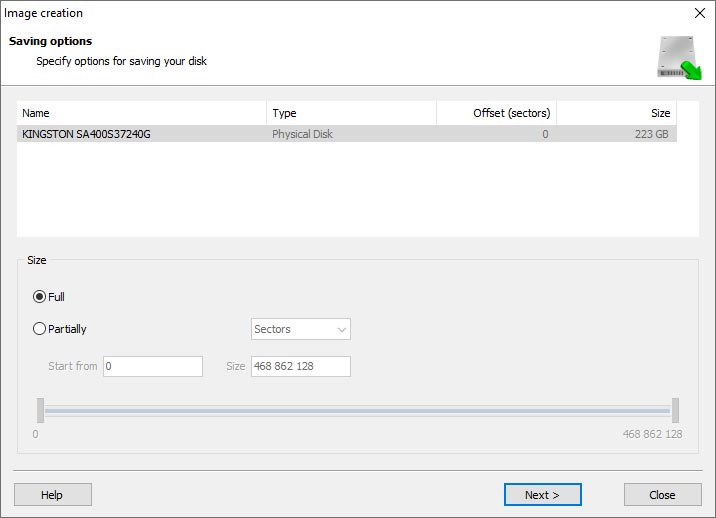
    Hetman RAID Recovery: Image Creation Wizard
  4. Choose the directory where the image will be saved. You may select any available disk connected to your PC or upload the image via FTP.
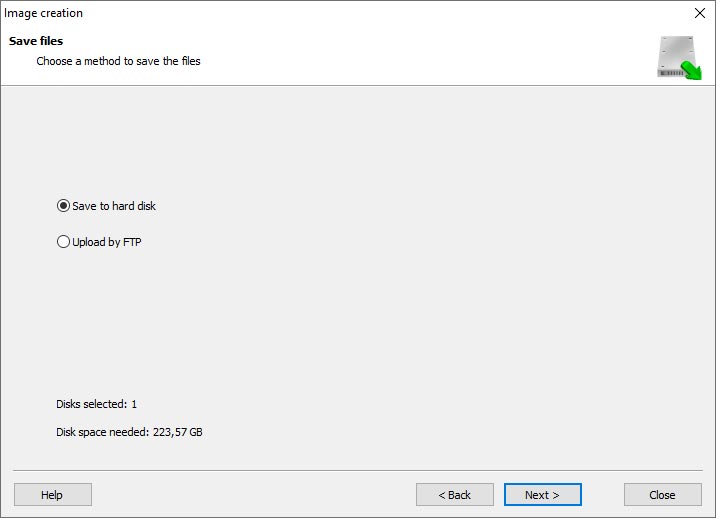
    Hetman RAID Recovery: Choose a disk or save the image via FTP

Where Are the User’s Files Actually Stored?

The Buffalo TeraStation TS5810DN9608 network-attached storage keeps OS Linux operating system files on a separate RAID 1 (mirrored) array. Usually, all NAS systems create several volumes on every hard disk, and the first of them takes up to 2 Gb of space. This is where operating system files are stored. Other volumes are united into a RAID array where user’s data is written.

RAID Recovery Software: Detailed Comparison

Product Operating system RAID controller support Supported file systems Virtual RAID controller support Data recovery from damaged RAID File preview
Hetman RAID Recovery Windows, Linux, MacOS Yes, over 100 controllers FAT, exFAT, NTFS, ReFS, APFS, HFS+, Ext4, Ext3, Ext2, ReiserFS, Btrfs, VMFS, Hikvision, XFS, UFS, ZFS Yes Yes Yes
DiskInternals RAID Recovery Windows Yes, over 10 controllers FAT, NTFS, Ext2/3/4, HFS+ No Yes Yes
R-Studio Windows, Mac, Linux Yes, over 20 controllers FAT, NTFS, Ext2/3/4, HFS+ Yes Yes Yes
UFS Explorer RAID Recovery Windows, Mac, Linux Yes, over 100 controllers FAT, NTFS, Ext2/3/4, HFS+ Yes Yes Yes
EaseUS Data Recovery Windows Yes, over 20 controllers FAT, NTFS, Ext2/3/4, HFS+ No Yes Yes
ReclaiMe Free RAID Recovery Windows Yes, over 100 controllers FAT, NTFS, Ext2/3/4, HFS+ Yes Yes Yes

Feedback

We will be happy to answer your questions!

Comments (3)

  • Hetman Software: Data Recovery
    Hetman Software: Data Recovery 9.08.2022 12:31 #
    If you want to ask a question about data recovery, from NAS TeraStation TS5810DN9608, feel free to leave a comment!
  • Mark Buckby
    Mark Buckby 1.09.2023 11:45 #
    Is it possible to recover data from a NAS Buffalo TeraStation TS5810DN9608 device that has undergone a factory reset or system restore?
    • Hetman Software
      Hetman Software 1.09.2023 12:59 #

      Recovering data from a NAS (Network Attached Storage) device that has undergone a factory reset or system restore can be challenging. A factory reset or system restore typically erases all the data on the device and resets it to its original state.

      However, there might still be a chance to recover the data if certain conditions are met:

      1. Backup: If you had a backup of your data stored on another device or cloud storage, you can easily restore it from there.
      2. RAID Configuration: If the Buffalo TeraStation TS5810DN9608 device was configured in a RAID (Redundant Array of Independent Disks) setup, and the factory reset or system restore did not involve reinitializing the RAID array, there might be a possibility to recover the data. In such cases, it is recommended to consult a professional data recovery service that specializes in RAID recovery.
      3. Data Recovery Software: There are data recovery software tools available that can attempt to recover data from formatted or deleted partitions. These tools might be able to scan the NAS device and recover some or all of the data. However, success rates vary, and there is no guarantee of complete recovery.

      It is important to note that attempting data recovery on your own may carry risks of further data loss or device damage. If the data on the NAS device is critical and valuable, it is advisable to seek professional assistance from a data recovery service with experience in NAS devices.

Post comment
User
Your email address will not be published. Required fields are marked *

Vladimir Artiukh

Author: Vladimir Artiukh, Technical Writer

Vladimir Artiukh is a technical writer for Hetman Software, as well as the voice and face of their English-speaking YouTube channel, Hetman Software: Data Recovery for Windows. He handles tutorials, how-tos, and detailed reviews on how the company’s tools work with all kinds of data storage devices.

Oleg Afonin

Editor: Oleg Afonin, Technical Writer

Oleg Afonin is an expert in mobile forensics, data recovery and computer systems. He often attends large data security conferences, and writes several blogs for such resources as xaker.ru, Elcomsoft and Habr. In addition to his online activities, Oleg’s articles are also published in professional magazines. Also, Oleg Afonin is the co-author of a well-known book, Mobile Forensics - Advanced Investigative Strategies.

Share

Questions and answers

  • What are the key features and capabilities of the NAS Buffalo TeraStation TS5810DN9608 that make it suitable for use as a website server?

    The NAS Buffalo TeraStation TS5810DN9608 has several key features and capabilities that make it suitable for use as a website server:

    1. High-performance hardware: The TS5810DN9608 is equipped with a powerful Intel Atom quad-core processor and 8GB of DDR3 RAM, providing the necessary processing power to handle website server tasks efficiently.
    2. Large storage capacity: This NAS device comes with 96TB of storage capacity, allowing you to store a large amount of website data, including files, images, and databases.
    3. RAID support: The TS5810DN9608 supports RAID levels 0, 1, 5, 6, 10, and JBOD, providing data redundancy and protection against drive failures. This is crucial for maintaining the availability and integrity of your website.
    4. Scalability: With eight drive bays, the TeraStation TS5810DN9608 offers room for expansion, allowing you to add more storage as your website grows and demands increase.
    5. Dual Gigabit Ethernet ports: The NAS device features dual Gigabit Ethernet ports, enabling high-speed data transfer and ensuring a reliable and stable network connection for your website server.
    6. Web server capabilities: The TeraStation TS5810DN9608 supports various web server applications, including Apache, Nginx, and Microsoft IIS, allowing you to host and serve websites with ease.
    7. Remote access and management: Buffalo's NAS Navigator software enables remote access and management of the TeraStation, allowing you to easily monitor and control your website server from anywhere.
    8. Backup and disaster recovery: The TS5810DN9608 offers multiple backup options, including scheduled backups, replication to remote devices, and integration with cloud backup services. This ensures that your website data is protected and can be quickly restored in the event of a disaster.

    Overall, the high-performance hardware, large storage capacity, RAID support, scalability, web server capabilities, remote access, and backup features of the NAS Buffalo TeraStation TS5810DN9608 make it a suitable choice for hosting and serving websites.

  • How does the NAS Buffalo TeraStation TS5810DN9608 handle website hosting and management tasks, such as domain management, SSL certificate installation, and database integration?

    The NAS Buffalo TeraStation TS5810DN9608 is primarily designed as a network-attached storage device and does not have built-in features specifically for website hosting and management tasks. However, it can still be used in conjunction with other software and services to handle these tasks.

    Domain Management: The TeraStation itself does not provide domain management capabilities. To manage domains, you would need to use a separate domain registrar or hosting provider. Once you have registered a domain, you can point it to the IP address of the TeraStation to make it accessible over the internet.

    SSL Certificate Installation: The TeraStation supports the installation of SSL certificates, but it does not provide a built-in mechanism for generating or managing them. You would need to obtain an SSL certificate from a trusted certificate authority (CA) and then manually install it on the TeraStation using its web-based administration interface.

    Database Integration: The TeraStation supports various database management systems, such as MySQL and PostgreSQL, but it does not provide a built-in database management interface. You would need to install and configure a separate database server on the TeraStation, and then use appropriate tools or software to manage and integrate databases with your website.

    In summary, while the TeraStation can be used for website hosting and management tasks, it primarily serves as a storage device and requires additional software and services to handle domain management, SSL certificate installation, and database integration.

  • Can the NAS Buffalo TeraStation TS5810DN9608 support high-traffic websites and handle concurrent user requests efficiently? Are there any limitations or considerations to keep in mind when using it as a website server?

    The NAS Buffalo TeraStation TS5810DN9608 is primarily designed as a network-attached storage device and may not be the most optimal choice for hosting high-traffic websites or handling concurrent user requests efficiently. While it can serve as a basic website server for small-scale or low-traffic sites, there are several limitations and considerations to keep in mind:

    1. Processing Power: The TS5810DN9608 is equipped with a quad-core Intel Atom processor, which may not provide sufficient processing power for handling high volumes of concurrent user requests or complex website operations.
    2. Memory: It comes with 4 GB of RAM, which can be a limiting factor when dealing with resource-intensive website applications or multiple concurrent connections.
    3. Network Speed: The TeraStation supports Gigabit Ethernet, which can be a bottleneck for serving high-traffic websites. The network speed may limit the number of concurrent connections and affect the overall performance.
    4. Storage Type: The TS5810DN9608 supports traditional hard drives rather than solid-state drives (SSDs). While it can still serve website files, database operations may be slower compared to servers with SSD storage.
    5. Web Server Software: The TeraStation runs on a Linux-based operating system and supports various web server software like Apache or Nginx. However, the performance may not match dedicated web server solutions designed for high-traffic scenarios.
    6. Scalability: The TS5810DN9608 has a maximum capacity of 96 TB, which may not be sufficient for large-scale websites or extensive data storage requirements.

    If you anticipate high traffic or heavy concurrent user requests, it is recommended to consider dedicated web server solutions or cloud hosting services that are specifically designed for such scenarios.
