How to Repair and Recover a Faulty RAID Array from NAS Digiever DS-2105 UHD

Has your NAS Digiever DS-2105 UHD suddenly lost its network drive and you’re unsure what to do next? Did the RAID array collapse, making your files inaccessible? Is the device throwing errors during startup? Perhaps you accidentally rebuilt the RAID array or several hard drives failed at the same time?

How to Repair and Recover a Faulty RAID Array from NAS Digiever DS-2105 UHD

Digiever DS-2105 UHD NAS Data Recovery in 2025

In this step-by-step tutorial, we’ll show you how to rebuild your RAID and recover data from an DS-2105 UHD. We’ll walk through the most common causes of failure and demonstrate proven methods to restore files from a lost or degraded RAID array.

How to Repair and Recover a Faulty RAID Array from NAS Digiever DS-2105 UHD

RAID Recovery™ 2.8
Recover data from damaged RAID arrays inaccessible from a computer.
Download

Why Regular Data Recovery Tools Can’t Restore Files from RAID

Conventional hard drives store user data by writing it sequentially across the disk surface, which means an entire file is typically located on a single drive. In contrast, when data is written to a RAID array, each file is split into multiple fragments. These fragments are then distributed and written in sequence across all the drives in the array. Depending on the configuration, fragment sizes can range from 2 KB to 2 MB, so every file is physically stored across several disks at once.

This approach significantly increases read and write performance — after all, writing two halves of a 1 GB file to two drives simultaneously is much faster than writing the full 1 GB to a single disk. However, this same mechanism makes file recovery far more complex.

Different RAID levels use different methods to distribute and protect data. On top of that, manufacturers like Digiever often add their own proprietary structures and variations. As a result, data can be written to disks in many different formats, and each requires a specific approach during recovery.

What is a NAS Digiever DS-2105 UHD (Network Attached Storage) device?

The Digiever DS-2105 UHD is a Network Attached Storage (NAS) device manufactured by Digiever. NAS devices are storage devices that are connected to a network and provide centralized storage and file sharing capabilities to multiple users and devices on the network.

The DS-2105 UHD is specifically designed for Ultra HD surveillance applications. It is equipped with multiple hard drive bays, allowing users to install and manage multiple hard drives for storage purposes. It supports RAID configurations for data redundancy and protection.

The NAS device is integrated with Digiever's VMS (Video Management Software), providing advanced video surveillance functionalities such as live viewing, video playback, remote access, and video analytics. It is capable of handling high-resolution video streams and offers scalable storage capacity to meet the needs of surveillance systems.

Additionally, the DS-2105 UHD supports various network protocols and features, including FTP, SMB/CIFS, NFS, iSCSI, and more. It also offers data backup and synchronization options, ensuring data integrity and availability.

Overall, the Digiever DS-2105 UHD NAS device is designed to provide reliable and efficient storage solutions for Ultra HD surveillance systems, offering centralized storage, advanced video management capabilities, and data protection features.

How to Remove Hard Disks from Your NAS and Connect Them to a PC

Although the NAS DS-2105 UHD can be accessed over the network, you still need to remove its hard disks and connect them directly to a Windows PC. Only then can the recovery software properly scan and analyze the drives. Follow these steps:

  1. Power off the NAS and disconnect it from the power source.

    WARNING! Before removing any drives, carefully read the device manual. Improper actions may damage both the NAS enclosure and the hard disks in the RAID array.

  2. Remove the hard disks one by one, gently sliding each drive out of its slot. Remember that hard disks are highly sensitive: any impact or drop can cause serious physical damage.

  3. Label each hard disk according to its position inside the NAS. The order of the drives is crucial for correct RAID reconstruction.

  4. Connect the drives to your computer. In this video, we explain which ports you can use to connect hard disks and what to do if your PC does not have enough free connectors.

    Go to view

    How to Order Remote Data Recovery

    How to Order Remote Data Recovery

Step-by-Step Data Recovery with Hetman RAID Recovery

Hetman Raid Recovery

This program restores data from damaged RAID arrays and is fully compatible with Digiever DS-2105 UHD. Each hard disk in the array contains technical metadata describing how files were written. When launched, Hetman RAID Recovery analyzes this metadata, automatically reconstructs the damaged array, and provides access to its contents. After that, you can browse the recovered disk and save your files. The program can also restore files that were accidentally deleted from the network drive.

Go to view
How to recover data from a Digiever

How to recover data from a Digiever

DS-2105 UHD has 2 HDD slots, and it supports the following array types:

  • RAID 0;
  • RAID 1;
  • JBOD;

NAS supports:

  • exFAT, VFAT, FAT 12 / 16 / 32;
  • NTFS / ReFS;
  • APFS / HFS+;
  • Ext2 / 3 / 4 / ReiserFS / XFS / UFS / ZFS / Btrfs;
  • VMFS / HikvisionFS;

How to Safely Recover Data from Disk Images

This utility allows you to create a complete copy of a disk and work with the disk image instead of the physical drive. This approach helps protect your data from:

  • Overwriting during the recovery process;
  • Additional data loss caused by bad sectors;
  • User errors.

To create a disk image, follow these steps:

  1. Ensure you have enough free space to store the image. Its size will typically match the size of the original disk.

  2. In the main window, select the target disk and choose Tools - Save Disk. You can also select multiple disks if needed.

  3. When the Image Creation Wizard opens, select whether you want to save the entire disk or only a specific region. Adjust the settings and click Next.
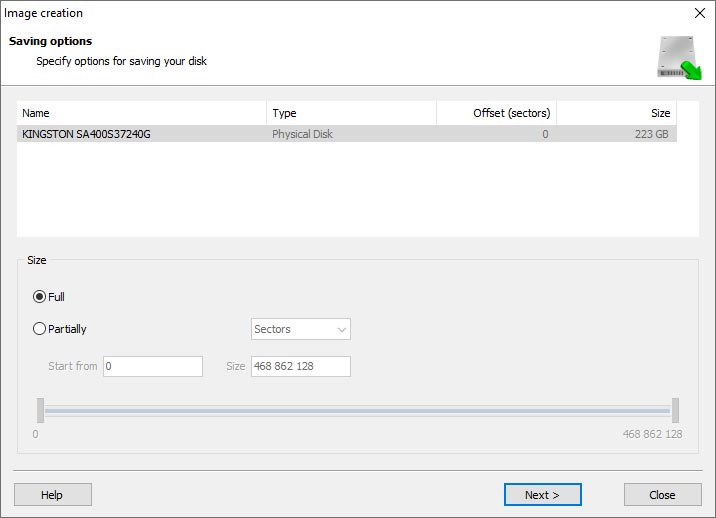
    Hetman RAID Recovery: Image Creation Wizard
  4. Choose the directory where the image will be saved. You may select any available disk connected to your PC or upload the image via FTP.
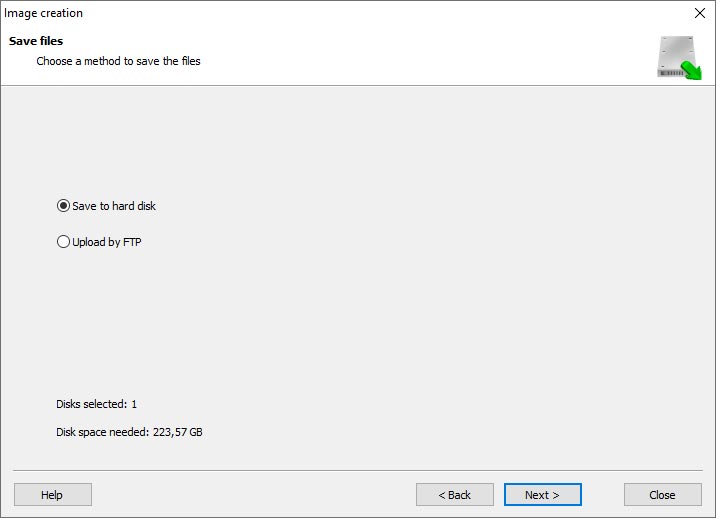
    Hetman RAID Recovery: Choose a disk or save the image via FTP

Where Are the User’s Files Actually Stored?

The Digiever DS-2105 UHD network-attached storage keeps OS Linux operating system files on a separate RAID 1 (mirrored) array. Usually, all NAS systems create several volumes on every hard disk, and the first of them takes up to 2 Gb of space. This is where operating system files are stored. Other volumes are united into a RAID array where user’s data is written.

RAID Recovery Software: Detailed Comparison

Product Operating system RAID controller support Supported file systems Virtual RAID controller support Data recovery from damaged RAID File preview
Hetman RAID Recovery Windows, Linux, MacOS Yes, over 100 controllers FAT, exFAT, NTFS, ReFS, APFS, HFS+, Ext4, Ext3, Ext2, ReiserFS, Btrfs, VMFS, Hikvision, XFS, UFS, ZFS Yes Yes Yes
DiskInternals RAID Recovery Windows Yes, over 10 controllers FAT, NTFS, Ext2/3/4, HFS+ No Yes Yes
R-Studio Windows, Mac, Linux Yes, over 20 controllers FAT, NTFS, Ext2/3/4, HFS+ Yes Yes Yes
UFS Explorer RAID Recovery Windows, Mac, Linux Yes, over 100 controllers FAT, NTFS, Ext2/3/4, HFS+ Yes Yes Yes
EaseUS Data Recovery Windows Yes, over 20 controllers FAT, NTFS, Ext2/3/4, HFS+ No Yes Yes
ReclaiMe Free RAID Recovery Windows Yes, over 100 controllers FAT, NTFS, Ext2/3/4, HFS+ Yes Yes Yes

Feedback

We will be happy to answer your questions!

Comments (3)

  • Hetman Software: Data Recovery
    Hetman Software: Data Recovery 9.08.2022 12:31 #
    If you want to ask a question about data recovery, from NAS DS-2105 UHD, feel free to leave a comment!
  • Russell Hackett
    Russell Hackett 25.08.2023 06:38 #
    Can data recovery from a NAS Digiever DS-2105 UHD device be done if the device is showing signs of overheating or cooling fan failure?
    • Hetman Software
      Hetman Software 25.08.2023 06:59 #

      If a NAS device like the Digiever DS-2105 UHD is showing signs of overheating or cooling fan failure, it is recommended to address these hardware issues first before attempting any data recovery. Overheating can lead to further damage to the device and potentially cause data loss.

      You should try the following steps:

      1. Ensure proper ventilation: Make sure the NAS device is placed in a well-ventilated area and not obstructed by any objects. Ensure that the cooling vents are clear and not blocked.
      2. Check the cooling fan: If the cooling fan is not functioning or making unusual noises, it may need to be replaced. Contact the manufacturer or a professional technician to diagnose and replace the fan if necessary.
      3. Monitor temperature: Most NAS devices have built-in temperature monitoring features. Check the device's temperature readings to determine if it is consistently running at high temperatures. If so, it may indicate a larger cooling issue that needs to be addressed.

      Once the hardware issues have been resolved and the NAS device is running within acceptable temperature ranges, data recovery can be attempted. However, if the device has suffered significant damage or if the data is critical, it is recommended to consult a professional data recovery service. They have specialized tools and expertise to recover data from damaged or malfunctioning NAS devices.

Post comment
User
Your email address will not be published. Required fields are marked *

Vladimir Artiukh

Author: Vladimir Artiukh, Technical Writer

Vladimir Artiukh is a technical writer for Hetman Software, as well as the voice and face of their English-speaking YouTube channel, Hetman Software: Data Recovery for Windows. He handles tutorials, how-tos, and detailed reviews on how the company’s tools work with all kinds of data storage devices.

Oleg Afonin

Editor: Oleg Afonin, Technical Writer

Oleg Afonin is an expert in mobile forensics, data recovery and computer systems. He often attends large data security conferences, and writes several blogs for such resources as xaker.ru, Elcomsoft and Habr. In addition to his online activities, Oleg’s articles are also published in professional magazines. Also, Oleg Afonin is the co-author of a well-known book, Mobile Forensics - Advanced Investigative Strategies.

Share

Questions and answers

  • How does the Digiever DS-2105 UHD function as a VPN server and what are its key features in this regard?

    The Digiever DS-2105 UHD is primarily a network video recorder (NVR) designed for video surveillance systems. While it does not function as a dedicated VPN server, it supports VPN (Virtual Private Network) connectivity to enhance remote access and security. Here are some key features related to VPN functionality:

    1. Secure Remote Access: The DS-2105 UHD allows users to establish a secure connection to their surveillance system over the internet using VPN. This ensures encrypted communication and protects against unauthorized access.
    2. VPN Protocols: It supports various VPN protocols such as PPTP (Point-to-Point Tunneling Protocol), L2TP (Layer 2 Tunneling Protocol), and OpenVPN. These protocols enable secure tunneling and data transmission between the remote client and the NVR.
    3. Multi-User VPN Support: The DS-2105 UHD allows multiple users to connect to the NVR via VPN simultaneously. This feature is particularly useful for organizations with multiple remote users or branches that need access to the surveillance system.
    4. Dynamic DNS: The device supports Dynamic DNS (DDNS), which allows users to access the NVR using a domain name instead of an IP address. This simplifies the VPN configuration process and makes it easier to connect remotely.
    5. Mobile VPN Client: Digiever provides a mobile app (Digishield) that supports VPN connectivity. Users can securely access the NVR and view live or recorded video footage on their smartphones or tablets.
    6. Two-Factor Authentication: The DS-2105 UHD supports two-factor authentication for VPN connections. This adds an extra layer of security by requiring users to provide a second form of authentication, such as a unique code generated on their mobile device.

    It's important to note that while the Digiever DS-2105 UHD offers VPN functionality, its primary purpose is video surveillance. If you require a dedicated VPN server with advanced features, you may need to consider a separate solution specifically designed for VPN services.

  • What are the advantages of using the Digiever DS-2105 UHD as a VPN server compared to other similar devices in the market?

    The Digiever DS-2105 UHD offers several advantages as a VPN server compared to other similar devices in the market:

    1. High-quality video streaming: The DS-2105 UHD supports Ultra HD video streaming, ensuring a superior visual experience for remote access to surveillance systems. This is particularly beneficial for users who require detailed video monitoring or analysis.
    2. Secure remote access: The device provides a secure VPN connection, allowing users to access their surveillance systems remotely without compromising data security. This is crucial for organizations that prioritize the protection of sensitive video footage and system settings.
    3. Efficient bandwidth utilization: The DS-2105 UHD utilizes H.265 video compression technology, which significantly reduces bandwidth consumption while maintaining video quality. This ensures smooth remote access even with limited network resources, making it ideal for remote surveillance in bandwidth-constrained environments.
    4. Versatile compatibility: The device supports various VPN protocols, including PPTP, L2TP, and OpenVPN. This flexibility enables seamless integration with different client devices and operating systems, accommodating a wide range of user preferences and requirements.
    5. User-friendly interface: The DS-2105 UHD comes with an intuitive and user-friendly management interface, making it easy to set up and configure the VPN server. This simplifies the deployment process, reducing the need for extensive technical expertise.
    6. Scalability: The Digiever DS-2105 UHD is designed to handle multiple concurrent VPN connections, allowing for scalability as the surveillance system expands. This ensures that the device can accommodate growing user demands without compromising performance.

    Overall, the Digiever DS-2105 UHD stands out as a VPN server due to its high-quality video streaming capabilities, secure remote access, efficient bandwidth utilization, compatibility with various protocols, user-friendly interface, and scalability.

  • Can you provide a step-by-step guide on setting up the Digiever DS-2105 UHD as a VPN server and configuring it for remote access?

    Setting up the Digiever DS-2105 UHD as a VPN server and configuring it for remote access involves several steps. Here is a step-by-step guide to help you with the process:

    1. Connect the Digiever DS-2105 UHD to your network: Ensure that the NVR is connected to your network using an Ethernet cable. Make sure it has a valid IP address within your network.
    2. Access the Digiever NVR web interface: Open a web browser on a computer connected to the same network and enter the IP address of the Digiever NVR in the address bar. Press Enter to access the web interface.
    3. Login to the Digiever NVR: Enter the default username and password (admin/admin) to log in to the NVR.
    4. Navigate to the Network Settings: Once logged in, go to the "Configuration" tab and select "Network Settings."
    5. Enable VPN Service: In the Network Settings page, locate the "VPN" section and click on "Enable VPN Service" to activate the VPN server functionality.
    6. Configure VPN Settings: Fill in the required information for the VPN settings, such as the VPN server address, subnet mask, DNS server, and IP range for VPN clients. Make sure to choose a secure VPN protocol, such as OpenVPN or PPTP.
    7. Save the settings: Click on the "Save" button to apply the VPN server settings.
    8. Set up port forwarding: To allow remote access to the VPN server, you need to configure port forwarding on your router. Log in to your router's administration interface and navigate to the port forwarding section. Forward the VPN port (default is 1194 for OpenVPN) to the internal IP address of the Digiever NVR.
    9. Configure firewall settings: If you have a firewall enabled on your network, ensure that it allows incoming connections to the VPN server port. Create a rule to allow traffic on the VPN port (e.g., UDP 1194).
    10. Set up VPN clients: Install a VPN client software (e.g., OpenVPN client) on the remote device you wish to connect to the Digiever NVR remotely. Configure the client with the VPN server address and other necessary details. Connect to the VPN server using the client software.
    11. Test remote access: Once the VPN client is connected to the Digiever NVR VPN server, you should be able to access the NVR's web interface or other services remotely using the NVR's internal IP address.

    Remember to consult the Digiever DS-2105 UHD user manual or contact Digiever support for specific instructions or troubleshooting assistance tailored to your device.
