
- Why Regular Data Recovery Tools Can’t Restore Files from RAID
- Key Information About the NAS QNAP HS-210
- How to Remove Hard Disks from Your NAS and Connect Them to a PC
Why Regular Data Recovery Tools Can’t Restore Files from RAID
Conventional hard drives store user data by writing it sequentially across the disk surface, which means an entire file is typically located on a single drive. In contrast, when data is written to a RAID array, each file is split into multiple fragments. These fragments are then distributed and written in sequence across all the drives in the array. Depending on the configuration, fragment sizes can range from 2 KB to 2 MB, so every file is physically stored across several disks at once.
This approach significantly increases read and write performance — after all, writing two halves of a 1 GB file to two drives simultaneously is much faster than writing the full 1 GB to a single disk. However, this same mechanism makes file recovery far more complex.
Different RAID levels use different methods to distribute and protect data. On top of that, manufacturers like QNAP often add their own proprietary structures and variations. As a result, data can be written to disks in many different formats, and each requires a specific approach during recovery.
How can a NAS QNAP HS-210 device's caching policy impact data loss risks?
The caching policy of a NAS (Network Attached Storage) device like QNAP HS-210 can impact data loss risks in several ways:
- Write caching: NAS devices often use write caching to improve performance. This means that when data is written to the NAS, it may first be stored in a cache before being written to the actual storage drives. While this improves performance, it also introduces a risk of data loss. If there is a power outage or system failure before the data is written from the cache to the drives, the data may be lost.
- Read caching: NAS devices may also use read caching to speed up data access. Frequently accessed data is stored in a cache for faster retrieval. However, if the data being read is modified or deleted while it is in the cache, there is a risk of data inconsistency or loss.
- RAID configuration: NAS devices often support RAID (Redundant Array of Independent Disks) configurations for data redundancy and protection against drive failures. The caching policy can impact how data is distributed across the drives in a RAID array. If the caching policy is not properly configured, it may increase the risk of data loss in the event of a drive failure.
- Cache management: The management of the cache itself can impact data loss risks. If the cache is not regularly flushed or synchronized with the storage drives, there is a higher risk of data loss. Similarly, if the cache is not properly monitored or maintained, it may lead to issues that can result in data loss.
To mitigate the data loss risks associated with caching policies on a QNAP HS-210 or any NAS device, it is important to:
- Implement an appropriate backup strategy to regularly back up data from the NAS to an external storage or cloud-based solution.
- Ensure that the NAS device has a reliable power supply and backup power source to minimize the risk of data loss during power outages.
- Regularly monitor and maintain the NAS device, including checking cache synchronization, updating firmware, and addressing any potential issues promptly.
- Configure the caching policy based on the specific needs of the data and workload, considering the trade-off between performance and data protection.
- Use RAID configurations for data redundancy and implement appropriate RAID levels based on the desired level of data protection.
It is recommended to consult the manufacturer's documentation and seek expert advice to properly configure the caching policy and mitigate data loss risks specific to the QNAP HS-210 device.
How to Remove Hard Disks from Your NAS and Connect Them to a PC
Although the NAS HS-210 can be accessed over the network, you still need to remove its hard disks and connect them directly to a Windows PC. Only then can the recovery software properly scan and analyze the drives. Follow these steps:
-
Power off the NAS and disconnect it from the power source.
WARNING! Before removing any drives, carefully read the device manual. Improper actions may damage both the NAS enclosure and the hard disks in the RAID array.
-
Remove the hard disks one by one, gently sliding each drive out of its slot. Remember that hard disks are highly sensitive: any impact or drop can cause serious physical damage.
-
Label each hard disk according to its position inside the NAS. The order of the drives is crucial for correct RAID reconstruction.
-
Connect the drives to your computer. In this video, we explain which ports you can use to connect hard disks and what to do if your PC does not have enough free connectors.
Go to view
Step-by-Step Data Recovery with Hetman RAID Recovery

This program restores data from damaged RAID arrays and is fully compatible with QNAP HS-210. Each hard disk in the array contains technical metadata describing how files were written. When launched, Hetman RAID Recovery analyzes this metadata, automatically reconstructs the damaged array, and provides access to its contents. After that, you can browse the recovered disk and save your files. The program can also restore files that were accidentally deleted from the network drive.
How to recover data from a QNAP
HS-210 has 2 HDD slots, and it supports the following array types:
- RAID 1;
NAS supports:
- ZFS;
- EXT4;
- EXT3;
- exFAT;
- FAT32 (External Disk Only);
- NTFS (External Disk Only);
- HFS+ (External Disk Read Only);
How to Safely Recover Data from Disk Images
This utility allows you to create a complete copy of a disk and work with the disk image instead of the physical drive. This approach helps protect your data from:
- Overwriting during the recovery process;
- Additional data loss caused by bad sectors;
- User errors.
To create a disk image, follow these steps:
-
Ensure you have enough free space to store the image. Its size will typically match the size of the original disk.
-
In the main window, select the target disk and choose Tools - Save Disk. You can also select multiple disks if needed.
-
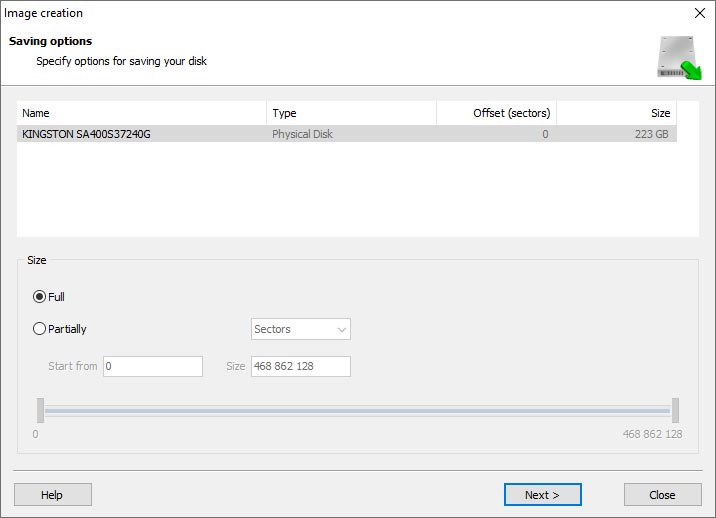
When the Image Creation Wizard opens, select whether you want to save the entire disk or only a specific region. Adjust the settings and click Next.
-
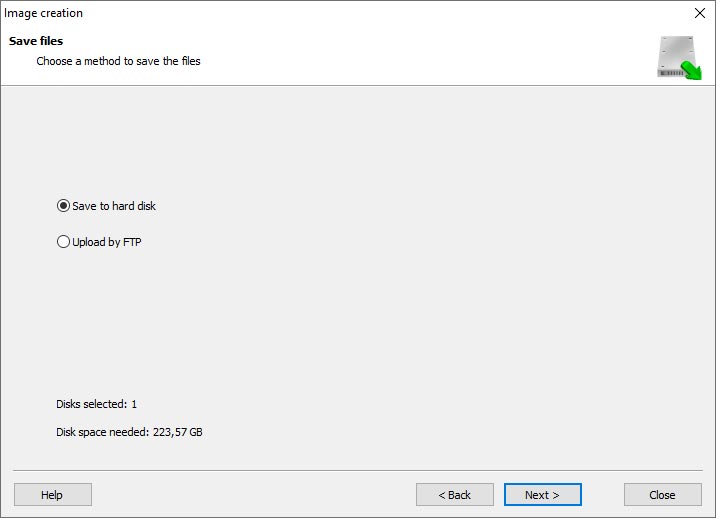
Choose the directory where the image will be saved. You may select any available disk connected to your PC or upload the image via FTP.


Where Are the User’s Files Actually Stored?
The QNAP HS-210 network-attached storage keeps QTS (QuTS hero) operating system files on a separate RAID 1 (mirrored) array. Usually, all NAS systems create several volumes on every hard disk, and the first of them takes up to 2 Gb of space. This is where operating system files are stored. Other volumes are united into a RAID array where user’s data is written.
RAID Recovery Software: Detailed Comparison
| Product | Operating system | RAID controller support | Supported file systems | Virtual RAID controller support | Data recovery from damaged RAID | File preview |
|---|---|---|---|---|---|---|
| Hetman RAID Recovery | Windows, Linux, MacOS | Yes, over 100 controllers | FAT, exFAT, NTFS, ReFS, APFS, HFS+, Ext4, Ext3, Ext2, ReiserFS, Btrfs, VMFS, Hikvision, XFS, UFS, ZFS | Yes | Yes | Yes |
| DiskInternals RAID Recovery | Windows | Yes, over 10 controllers | FAT, NTFS, Ext2/3/4, HFS+ | No | Yes | Yes |
| R-Studio | Windows, Mac, Linux | Yes, over 20 controllers | FAT, NTFS, Ext2/3/4, HFS+ | Yes | Yes | Yes |
| UFS Explorer RAID Recovery | Windows, Mac, Linux | Yes, over 100 controllers | FAT, NTFS, Ext2/3/4, HFS+ | Yes | Yes | Yes |
| EaseUS Data Recovery | Windows | Yes, over 20 controllers | FAT, NTFS, Ext2/3/4, HFS+ | No | Yes | Yes |
| ReclaiMe Free RAID Recovery | Windows | Yes, over 100 controllers | FAT, NTFS, Ext2/3/4, HFS+ | Yes | Yes | Yes |



Yes, the order of disks in a NAS QNAP HS-210 is important for a RAID array. In a RAID configuration, the disks are organized to work together as a single logical unit, providing data redundancy and improved performance. The specific order of the disks determines how the data is distributed and how the RAID array operates.
When setting up a RAID array on a QNAP HS-210, it is crucial to follow the manufacturer's instructions regarding disk installation and configuration. Typically, the NAS will have specific slots or bays designated for each disk, and it is important to insert the disks in the correct order.
Additionally, if a disk in the RAID array fails or needs to be replaced, the order of the disks becomes important during the rebuilding process. Replacing a disk with a new one in the wrong order may result in data loss or a failed rebuild.
Therefore, it is essential to carefully follow the instructions provided by QNAP and ensure the correct order of disks when setting up and maintaining a RAID array on a QNAP HS-210 NAS.