
- Why Regular Data Recovery Tools Can’t Restore Files from RAID
- Key Information About the NAS QNAP Turbo Station TS-873AU-RP
- How to Remove Hard Disks from Your NAS and Connect Them to a PC
Why Regular Data Recovery Tools Can’t Restore Files from RAID
Conventional hard drives store user data by writing it sequentially across the disk surface, which means an entire file is typically located on a single drive. In contrast, when data is written to a RAID array, each file is split into multiple fragments. These fragments are then distributed and written in sequence across all the drives in the array. Depending on the configuration, fragment sizes can range from 2 KB to 2 MB, so every file is physically stored across several disks at once.
This approach significantly increases read and write performance — after all, writing two halves of a 1 GB file to two drives simultaneously is much faster than writing the full 1 GB to a single disk. However, this same mechanism makes file recovery far more complex.
Different RAID levels use different methods to distribute and protect data. On top of that, manufacturers like QNAP often add their own proprietary structures and variations. As a result, data can be written to disks in many different formats, and each requires a specific approach during recovery.
Are there any recommended practices for protecting NAS QNAP Turbo Station TS-873AU-RP devices against physical theft or unauthorized access that can lead to data loss?
Yes, there are several recommended practices for protecting NAS QNAP Turbo Station TS-873AU-RP devices against physical theft or unauthorized access. Here are some key measures you can take:
- Physical Security:
- Place the NAS device in a secure location, such as a locked server room or cabinet.
- Ensure that only authorized personnel have access to the physical location.
- Consider using security cameras or alarms to monitor the area.
- Strong Passwords:
- Set a strong and unique password for the NAS device's admin account.
- Avoid using common or easily guessable passwords.
- Enable password complexity requirements to enhance security.
- User Access Control:
- Create individual user accounts with unique passwords for each user.
- Assign appropriate access privileges and restrictions based on user roles and responsibilities.
- Regularly review and update user accounts to remove unnecessary or inactive accounts.
- Firmware Updates:
- Keep the NAS device's firmware up to date with the latest security patches.
- Enable automatic firmware updates or regularly check for new updates.
- Network Security:
- Configure a firewall to control incoming and outgoing network traffic.
- Enable network encryption protocols (such as SSL/TLS) to secure data transmission.
- Use VPN (Virtual Private Network) for remote access to the NAS device.
- Data Encryption:
- Enable disk encryption to protect data stored on the NAS device.
- Use strong encryption algorithms and securely manage encryption keys.
- Backup and Disaster Recovery:
- Regularly backup your data to an offsite location or cloud storage.
- Test the backup and restore processes to ensure data integrity.
- Two-Factor Authentication (2FA):
- Enable 2FA for user authentication, adding an extra layer of security.
- Auditing and Logging:
- Enable system logs and regularly review them for any suspicious activities.
- Implement log monitoring and alerting to detect unauthorized access attempts.
- Employee Education:
- Train employees on cybersecurity best practices and the importance of data security.
- Teach them about phishing attacks, social engineering, and other common security threats.
By implementing these practices, you can significantly enhance the security of your QNAP Turbo Station TS-873AU-RP and protect against physical theft or unauthorized access that may lead to data loss.
How to Remove Hard Disks from Your NAS and Connect Them to a PC
Although the NAS Turbo Station TS-873AU-RP can be accessed over the network, you still need to remove its hard disks and connect them directly to a Windows PC. Only then can the recovery software properly scan and analyze the drives. Follow these steps:
-
Power off the NAS and disconnect it from the power source.
WARNING! Before removing any drives, carefully read the device manual. Improper actions may damage both the NAS enclosure and the hard disks in the RAID array.
-
Remove the hard disks one by one, gently sliding each drive out of its slot. Remember that hard disks are highly sensitive: any impact or drop can cause serious physical damage.
-
Label each hard disk according to its position inside the NAS. The order of the drives is crucial for correct RAID reconstruction.
-
Connect the drives to your computer. In this video, we explain which ports you can use to connect hard disks and what to do if your PC does not have enough free connectors.
Go to view
Step-by-Step Data Recovery with Hetman RAID Recovery

This program restores data from damaged RAID arrays and is fully compatible with QNAP Turbo Station TS-873AU-RP. Each hard disk in the array contains technical metadata describing how files were written. When launched, Hetman RAID Recovery analyzes this metadata, automatically reconstructs the damaged array, and provides access to its contents. After that, you can browse the recovered disk and save your files. The program can also restore files that were accidentally deleted from the network drive.
How to recover data from a QNAP
Turbo Station TS-873AU-RP has 8 HDD slots, and it supports the following array types:
- RAID 50;
- RAID 60;
- RAID 5;
- RAID 6;
- RAID 10;
- RAID 0;
- RAID 1;
- JBOD;
NAS supports:
- ZFS;
- EXT4;
- EXT3;
- exFAT;
- FAT32 (External Disk Only);
- NTFS (External Disk Only);
- HFS+ (External Disk Read Only);
How to Safely Recover Data from Disk Images
This utility allows you to create a complete copy of a disk and work with the disk image instead of the physical drive. This approach helps protect your data from:
- Overwriting during the recovery process;
- Additional data loss caused by bad sectors;
- User errors.
To create a disk image, follow these steps:
-
Ensure you have enough free space to store the image. Its size will typically match the size of the original disk.
-
In the main window, select the target disk and choose Tools - Save Disk. You can also select multiple disks if needed.
-
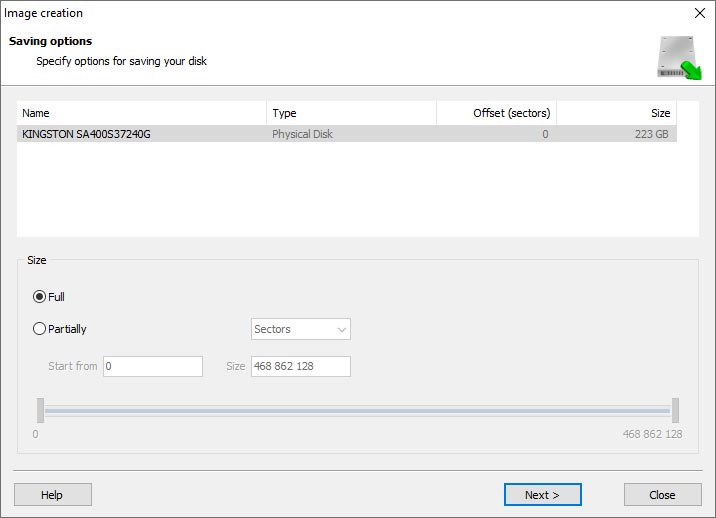
When the Image Creation Wizard opens, select whether you want to save the entire disk or only a specific region. Adjust the settings and click Next.
-
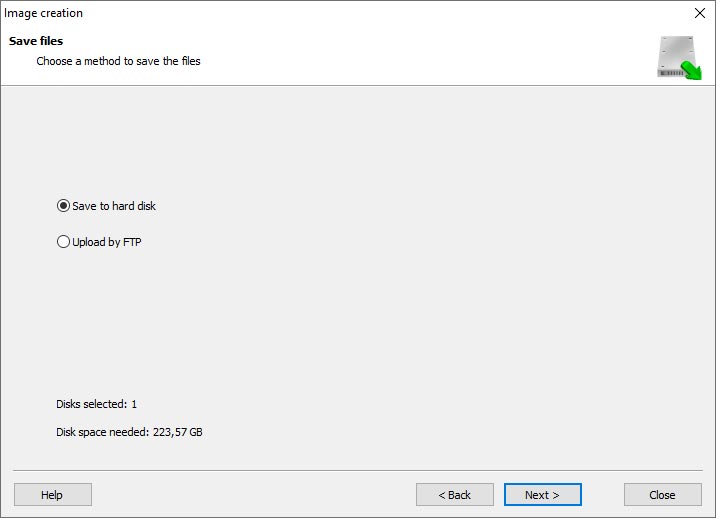
Choose the directory where the image will be saved. You may select any available disk connected to your PC or upload the image via FTP.


Where Are the User’s Files Actually Stored?
The QNAP Turbo Station TS-873AU-RP network-attached storage keeps QTS (QuTS hero) operating system files on a separate RAID 1 (mirrored) array. Usually, all NAS systems create several volumes on every hard disk, and the first of them takes up to 2 Gb of space. This is where operating system files are stored. Other volumes are united into a RAID array where user’s data is written.
RAID Recovery Software: Detailed Comparison
| Product | Operating system | RAID controller support | Supported file systems | Virtual RAID controller support | Data recovery from damaged RAID | File preview |
|---|---|---|---|---|---|---|
| Hetman RAID Recovery | Windows, Linux, MacOS | Yes, over 100 controllers | FAT, exFAT, NTFS, ReFS, APFS, HFS+, Ext4, Ext3, Ext2, ReiserFS, Btrfs, VMFS, Hikvision, XFS, UFS, ZFS | Yes | Yes | Yes |
| DiskInternals RAID Recovery | Windows | Yes, over 10 controllers | FAT, NTFS, Ext2/3/4, HFS+ | No | Yes | Yes |
| R-Studio | Windows, Mac, Linux | Yes, over 20 controllers | FAT, NTFS, Ext2/3/4, HFS+ | Yes | Yes | Yes |
| UFS Explorer RAID Recovery | Windows, Mac, Linux | Yes, over 100 controllers | FAT, NTFS, Ext2/3/4, HFS+ | Yes | Yes | Yes |
| EaseUS Data Recovery | Windows | Yes, over 20 controllers | FAT, NTFS, Ext2/3/4, HFS+ | No | Yes | Yes |
| ReclaiMe Free RAID Recovery | Windows | Yes, over 100 controllers | FAT, NTFS, Ext2/3/4, HFS+ | Yes | Yes | Yes |



