Data Recovery After RAID Array Format on NAS QNAP Turbo Station TS-873U-RP: Steps and Techniques

Has your NAS QNAP Turbo Station TS-873U-RP suddenly lost its network drive and you’re unsure what to do next? Did the RAID array collapse, making your files inaccessible? Is the device throwing errors during startup? Perhaps you accidentally rebuilt the RAID array or several hard drives failed at the same time?

Data Recovery After RAID Array Format on NAS QNAP Turbo Station TS-873U-RP: Steps and Techniques

QNAP Turbo Station TS-873U-RP NAS Data Recovery in 2025

In this step-by-step tutorial, we’ll show you how to rebuild your RAID and recover data from an Turbo Station TS-873U-RP. We’ll walk through the most common causes of failure and demonstrate proven methods to restore files from a lost or degraded RAID array.

Data Recovery After RAID Array Format on NAS QNAP Turbo Station TS-873U-RP: Steps and Techniques

RAID Recovery™ 2.8
Recover data from damaged RAID arrays inaccessible from a computer.
Download

Why Regular Data Recovery Tools Can’t Restore Files from RAID

Conventional hard drives store user data by writing it sequentially across the disk surface, which means an entire file is typically located on a single drive. In contrast, when data is written to a RAID array, each file is split into multiple fragments. These fragments are then distributed and written in sequence across all the drives in the array. Depending on the configuration, fragment sizes can range from 2 KB to 2 MB, so every file is physically stored across several disks at once.

This approach significantly increases read and write performance — after all, writing two halves of a 1 GB file to two drives simultaneously is much faster than writing the full 1 GB to a single disk. However, this same mechanism makes file recovery far more complex.

Different RAID levels use different methods to distribute and protect data. On top of that, manufacturers like QNAP often add their own proprietary structures and variations. As a result, data can be written to disks in many different formats, and each requires a specific approach during recovery.

Are there any recommended steps to take after detecting or suspecting data loss on a NAS QNAP Turbo Station TS-873U-RP device?

Yes, there are several recommended steps to take after detecting or suspecting data loss on a QNAP Turbo Station TS-873U-RP NAS device. Here are some steps you can follow:

  1. Stop using the NAS: As soon as you suspect data loss, it's crucial to stop using the NAS immediately. Continuing to use the device may overwrite the lost data, making it harder or impossible to recover.
  2. Disconnect from the network: Disconnect the NAS from the network to prevent any further data loss or corruption. This will help ensure that no automatic synchronization or backup processes overwrite the lost data.
  3. Contact QNAP support: Reach out to QNAP support for assistance. They can provide guidance specific to your device and help you troubleshoot the issue. QNAP's support team may be able to guide you through recovery steps or recommend professional data recovery services.
  4. Check hardware and connections: Ensure that all hardware components are properly connected and functioning. Check cables, power supply, and any storage drives for any signs of damage or failure.
  5. Perform basic troubleshooting: Follow any troubleshooting steps recommended by QNAP support. This may include restarting the device, updating firmware, or performing a system reset.
  6. Attempt data recovery: If you have backups, restore the data from the backup source. If you don't have backups, and the data is critical, consider seeking professional data recovery services. QNAP may be able to recommend trusted data recovery providers.
  7. Review and improve backup strategy: After recovering the data or setting up the NAS again, review your backup strategy. Ensure that you have regular backups in place to prevent future data loss incidents. Consider using multiple backup methods, such as off-site backups or cloud storage, for added redundancy.

Remember, data recovery success depends on various factors, including the nature of the data loss and the actions taken after detection. It's always recommended to consult with professionals or follow QNAP's guidance for the best chance of recovering your lost data.

How to Remove Hard Disks from Your NAS and Connect Them to a PC

Although the NAS Turbo Station TS-873U-RP can be accessed over the network, you still need to remove its hard disks and connect them directly to a Windows PC. Only then can the recovery software properly scan and analyze the drives. Follow these steps:

  1. Power off the NAS and disconnect it from the power source.

    WARNING! Before removing any drives, carefully read the device manual. Improper actions may damage both the NAS enclosure and the hard disks in the RAID array.

  2. Remove the hard disks one by one, gently sliding each drive out of its slot. Remember that hard disks are highly sensitive: any impact or drop can cause serious physical damage.

  3. Label each hard disk according to its position inside the NAS. The order of the drives is crucial for correct RAID reconstruction.

  4. Connect the drives to your computer. In this video, we explain which ports you can use to connect hard disks and what to do if your PC does not have enough free connectors.

    Go to view

    How to Order Remote Data Recovery

    How to Order Remote Data Recovery

Step-by-Step Data Recovery with Hetman RAID Recovery

Hetman Raid Recovery

This program restores data from damaged RAID arrays and is fully compatible with QNAP Turbo Station TS-873U-RP. Each hard disk in the array contains technical metadata describing how files were written. When launched, Hetman RAID Recovery analyzes this metadata, automatically reconstructs the damaged array, and provides access to its contents. After that, you can browse the recovered disk and save your files. The program can also restore files that were accidentally deleted from the network drive.

Go to view
How to recover data from a QNAP

How to recover data from a QNAP

Turbo Station TS-873U-RP has 8 HDD slots, and it supports the following array types:

  • RAID 50;
  • RAID 60;
  • RAID 5;
  • RAID 6;
  • RAID 10;
  • RAID 0;
  • RAID 1;
  • JBOD;

NAS supports:

  • ZFS;
  • EXT4;
  • EXT3;
  • exFAT;
  • FAT32 (External Disk Only);
  • NTFS (External Disk Only);
  • HFS+ (External Disk Read Only);

How to Safely Recover Data from Disk Images

This utility allows you to create a complete copy of a disk and work with the disk image instead of the physical drive. This approach helps protect your data from:

  • Overwriting during the recovery process;
  • Additional data loss caused by bad sectors;
  • User errors.

To create a disk image, follow these steps:

  1. Ensure you have enough free space to store the image. Its size will typically match the size of the original disk.

  2. In the main window, select the target disk and choose Tools - Save Disk. You can also select multiple disks if needed.

  3. When the Image Creation Wizard opens, select whether you want to save the entire disk or only a specific region. Adjust the settings and click Next.
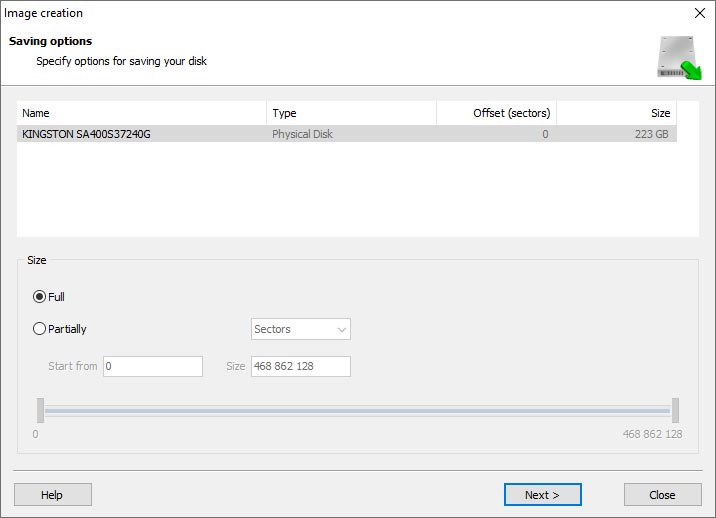
    Hetman RAID Recovery: Image Creation Wizard
  4. Choose the directory where the image will be saved. You may select any available disk connected to your PC or upload the image via FTP.
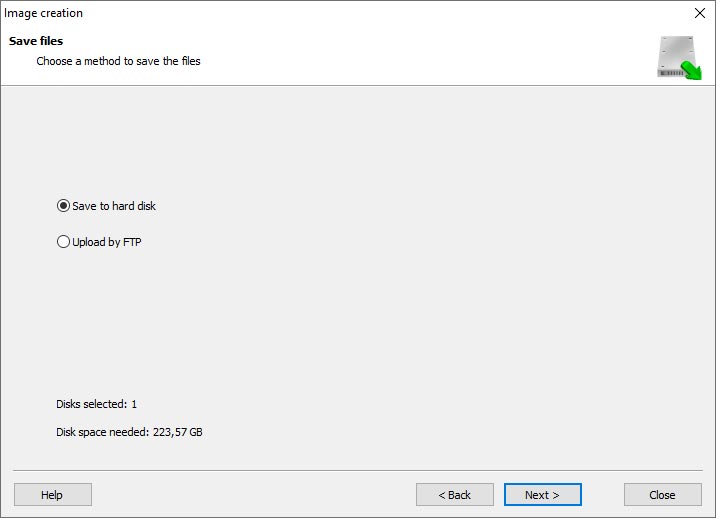
    Hetman RAID Recovery: Choose a disk or save the image via FTP

Where Are the User’s Files Actually Stored?

The QNAP Turbo Station TS-873U-RP network-attached storage keeps QTS (QuTS hero) operating system files on a separate RAID 1 (mirrored) array. Usually, all NAS systems create several volumes on every hard disk, and the first of them takes up to 2 Gb of space. This is where operating system files are stored. Other volumes are united into a RAID array where user’s data is written.

RAID Recovery Software: Detailed Comparison

Product Operating system RAID controller support Supported file systems Virtual RAID controller support Data recovery from damaged RAID File preview
Hetman RAID Recovery Windows, Linux, MacOS Yes, over 100 controllers FAT, exFAT, NTFS, ReFS, APFS, HFS+, Ext4, Ext3, Ext2, ReiserFS, Btrfs, VMFS, Hikvision, XFS, UFS, ZFS Yes Yes Yes
DiskInternals RAID Recovery Windows Yes, over 10 controllers FAT, NTFS, Ext2/3/4, HFS+ No Yes Yes
R-Studio Windows, Mac, Linux Yes, over 20 controllers FAT, NTFS, Ext2/3/4, HFS+ Yes Yes Yes
UFS Explorer RAID Recovery Windows, Mac, Linux Yes, over 100 controllers FAT, NTFS, Ext2/3/4, HFS+ Yes Yes Yes
EaseUS Data Recovery Windows Yes, over 20 controllers FAT, NTFS, Ext2/3/4, HFS+ No Yes Yes
ReclaiMe Free RAID Recovery Windows Yes, over 100 controllers FAT, NTFS, Ext2/3/4, HFS+ Yes Yes Yes

Feedback

We will be happy to answer your questions!

Comments (1)

  • Hetman Software: Data Recovery
    Hetman Software: Data Recovery 9.08.2022 12:31 #
    If you want to ask a question about data recovery, from NAS Turbo Station TS-873U-RP, feel free to leave a comment!
Post comment
User
Your email address will not be published. Required fields are marked *

Vladimir Artiukh

Author: Vladimir Artiukh, Technical Writer

Vladimir Artiukh is a technical writer for Hetman Software, as well as the voice and face of their English-speaking YouTube channel, Hetman Software: Data Recovery for Windows. He handles tutorials, how-tos, and detailed reviews on how the company’s tools work with all kinds of data storage devices.

Oleg Afonin

Editor: Oleg Afonin, Technical Writer

Oleg Afonin is an expert in mobile forensics, data recovery and computer systems. He often attends large data security conferences, and writes several blogs for such resources as xaker.ru, Elcomsoft and Habr. In addition to his online activities, Oleg’s articles are also published in professional magazines. Also, Oleg Afonin is the co-author of a well-known book, Mobile Forensics - Advanced Investigative Strategies.

Share

Questions and answers

  • What are the key features and capabilities of the QNAP Turbo Station TS-873U-RP that make it suitable for use as a database server?

    The QNAP Turbo Station TS-873U-RP has several key features and capabilities that make it suitable for use as a database server:

    1. High Performance: The TS-873U-RP is equipped with a powerful AMD R-Series quad-core processor and up to 64GB of DDR4 RAM, allowing it to handle demanding database workloads with ease.
    2. Expandable Storage: The Turbo Station supports up to 8 hard drives or SSDs, providing ample storage space for large databases. It also supports RAID configurations for data redundancy and improved performance.
    3. Dual 10GbE Ports: The TS-873U-RP comes with dual 10GbE SFP+ ports, allowing for high-speed network connectivity and ensuring fast data transfers between the database server and other devices on the network.
    4. Virtualization Support: The Turbo Station supports virtualization technologies such as VMware, Citrix, and Microsoft Hyper-V, enabling users to run multiple virtual machines (VMs) on a single server. This makes it ideal for running database server software in a virtualized environment.
    5. Data Protection: The TS-873U-RP offers comprehensive data protection features, including snapshot technology for point-in-time recovery, backup and restore capabilities, and AES 256-bit encryption for securing sensitive data.
    6. Scalability: The Turbo Station can be expanded by connecting additional QNAP expansion units, allowing for increased storage capacity as the database grows over time.
    7. Remote Access and Collaboration: QNAP's File Station and File Station Pro applications enable remote access to the database server, allowing users to access, edit, and collaborate on database files from anywhere using a web browser.
    8. Backup and Disaster Recovery: The Turbo Station supports various backup and disaster recovery options, including QNAP's own backup software, third-party backup solutions, and cloud backup services, ensuring data protection and business continuity.

    Overall, the QNAP Turbo Station TS-873U-RP offers high performance, expandable storage, advanced networking capabilities, and robust data protection features that make it well-suited for use as a reliable and efficient database server.

  • How does the QNAP Turbo Station TS-873U-RP ensure data security and reliability when used as a database server?

    The QNAP Turbo Station TS-873U-RP ensures data security and reliability when used as a database server through several features and functionalities:

    1. RAID Protection: The TS-873U-RP supports various RAID configurations, including RAID 1, 5, 6, and 10. These RAID levels provide data redundancy and protection against drive failures. In case of a drive failure, the system can rebuild the data from the remaining drives, ensuring data integrity and minimizing downtime.
    2. Snapshot Technology: The TS-873U-RP supports snapshot technology, which allows users to take point-in-time snapshots of their data. Snapshots capture the state of the data at a specific moment, providing a reliable backup and recovery solution. In case of accidental data deletion or corruption, users can easily restore their databases to a previous snapshot.
    3. Data Encryption: The TS-873U-RP supports AES 256-bit encryption, which allows users to encrypt their sensitive data at the storage level. This ensures that even if the hard drives are stolen or accessed without authorization, the data remains secure and unreadable.
    4. Network Security: The TS-873U-RP supports various network security protocols, including SSL/TLS encryption, IP filtering, and access control lists (ACLs). These features help protect the database server from unauthorized access and data breaches.
    5. High Availability: The TS-873U-RP supports high availability (HA) configurations, where two NAS units can be connected to ensure continuous operation even if one unit fails. In an HA configuration, the second NAS unit automatically takes over the operations, minimizing downtime and ensuring data availability.
    6. Backup and Replication: The TS-873U-RP provides various backup and replication options, allowing users to create multiple copies of their databases for data protection. Users can schedule regular backups to external devices or remote servers, ensuring an additional layer of data security.
    7. Virtualization Support: The TS-873U-RP supports virtualization technologies such as VMware, Citrix, and Microsoft Hyper-V. By running databases in virtual machines, users can take advantage of advanced features like live migration and high availability offered by these virtualization platforms.
    8. Data Scrubbing and SMART Monitoring: The TS-873U-RP performs regular data scrubbing and SMART monitoring on the hard drives to detect and correct any potential data errors or failures. This proactive approach helps maintain data integrity and ensures the reliability of the database server.

    By combining these features, the QNAP Turbo Station TS-873U-RP provides a robust and secure platform for hosting databases, ensuring data security, reliability, and high availability.

  • Can the QNAP Turbo Station TS-873U-RP handle large-scale database workloads effectively, and what are the performance considerations for using it as a database server?

    The QNAP Turbo Station TS-873U-RP is a powerful NAS device that can handle large-scale database workloads effectively. It is equipped with a quad-core AMD R-Series RX-421ND processor and up to 64GB DDR4 RAM, providing ample processing power and memory for database operations.

    To ensure optimal performance as a database server, there are several considerations:

    1. Storage Configuration: The TS-873U-RP supports various RAID configurations, including RAID 0, 1, 5, 6, 10, 50, and 60. For database workloads, it is recommended to use RAID 10 or RAID 6 for a balance between performance and data protection.
    2. Network Connectivity: The TS-873U-RP offers multiple Gigabit Ethernet ports and can be expanded with additional 10GbE ports. Utilizing high-speed network connections can improve database performance, especially for scenarios with heavy network traffic.
    3. SSD Caching: The NAS supports SSD caching, which can significantly enhance random access performance. By using SSDs as cache drives, frequently accessed database files or indexes can be stored in the cache, reducing latency and improving overall database performance.
    4. Virtualization Support: The TS-873U-RP is compatible with virtualization technologies like VMware, Citrix, and Microsoft Hyper-V. Running the database server as a virtual machine on the NAS can provide flexibility and scalability, allowing for better resource allocation and management.
    5. RAM Expansion: The NAS supports up to 64GB of DDR4 RAM. Increasing the RAM capacity can improve database performance, especially for memory-intensive workloads, by reducing disk I/O and utilizing more in-memory caching.
    6. Backup and Recovery: Implementing a robust backup and recovery strategy is crucial for database servers. The TS-873U-RP offers various backup options, including local snapshots, remote replication, and cloud backup, ensuring data integrity and availability.

    By considering these performance considerations and configuring the TS-873U-RP accordingly, it can effectively handle large-scale database workloads and provide reliable performance as a database server.
