Top Tips for NAS Digiever DS-16349-RM Pro+ Data Recovery: RAID Arrays

Has your NAS Digiever DS-16349-RM Pro+ suddenly lost its network drive and you’re unsure what to do next? Did the RAID array collapse, making your files inaccessible? Is the device throwing errors during startup? Perhaps you accidentally rebuilt the RAID array or several hard drives failed at the same time?

Top Tips for NAS Digiever DS-16349-RM Pro+ Data Recovery: RAID Arrays

Digiever DS-16349-RM Pro+ NAS Data Recovery in 2025

In this step-by-step tutorial, we’ll show you how to rebuild your RAID and recover data from an DS-16349-RM Pro+. We’ll walk through the most common causes of failure and demonstrate proven methods to restore files from a lost or degraded RAID array.

Top Tips for NAS Digiever DS-16349-RM Pro+ Data Recovery: RAID Arrays

RAID Recovery™ 2.8
Recover data from damaged RAID arrays inaccessible from a computer.
Download

Why Regular Data Recovery Tools Can’t Restore Files from RAID

Conventional hard drives store user data by writing it sequentially across the disk surface, which means an entire file is typically located on a single drive. In contrast, when data is written to a RAID array, each file is split into multiple fragments. These fragments are then distributed and written in sequence across all the drives in the array. Depending on the configuration, fragment sizes can range from 2 KB to 2 MB, so every file is physically stored across several disks at once.

This approach significantly increases read and write performance — after all, writing two halves of a 1 GB file to two drives simultaneously is much faster than writing the full 1 GB to a single disk. However, this same mechanism makes file recovery far more complex.

Different RAID levels use different methods to distribute and protect data. On top of that, manufacturers like Digiever often add their own proprietary structures and variations. As a result, data can be written to disks in many different formats, and each requires a specific approach during recovery.

Can malware or ransomware attacks lead to data loss in NAS Digiever DS-16349-RM Pro+ devices?

Yes, malware or ransomware attacks can potentially lead to data loss in NAS Digiever DS-16349-RM Pro+ devices. NAS devices, including the Digiever DS-16349-RM Pro+, are susceptible to various types of cyber threats, including malware and ransomware attacks.

Malware can infect the NAS device and corrupt or delete data stored on it. Ransomware, on the other hand, can encrypt the data on the NAS device and demand a ransom in exchange for the decryption key. If the user fails to pay the ransom, the data may be permanently lost.

To mitigate the risk of data loss due to malware or ransomware attacks, it is important to implement robust security measures such as regularly updating the firmware and software of the NAS device, using strong passwords, enabling firewall and intrusion detection systems, and regularly backing up the data to an offsite location. Additionally, educating users about safe browsing habits, avoiding suspicious downloads, and being cautious with email attachments can also help prevent malware and ransomware attacks.

How to Remove Hard Disks from Your NAS and Connect Them to a PC

Although the NAS DS-16349-RM Pro+ can be accessed over the network, you still need to remove its hard disks and connect them directly to a Windows PC. Only then can the recovery software properly scan and analyze the drives. Follow these steps:

  1. Power off the NAS and disconnect it from the power source.

    WARNING! Before removing any drives, carefully read the device manual. Improper actions may damage both the NAS enclosure and the hard disks in the RAID array.

  2. Remove the hard disks one by one, gently sliding each drive out of its slot. Remember that hard disks are highly sensitive: any impact or drop can cause serious physical damage.

  3. Label each hard disk according to its position inside the NAS. The order of the drives is crucial for correct RAID reconstruction.

  4. Connect the drives to your computer. In this video, we explain which ports you can use to connect hard disks and what to do if your PC does not have enough free connectors.

    Go to view

    How to Order Remote Data Recovery

    How to Order Remote Data Recovery

Step-by-Step Data Recovery with Hetman RAID Recovery

Hetman Raid Recovery

This program restores data from damaged RAID arrays and is fully compatible with Digiever DS-16349-RM Pro+. Each hard disk in the array contains technical metadata describing how files were written. When launched, Hetman RAID Recovery analyzes this metadata, automatically reconstructs the damaged array, and provides access to its contents. After that, you can browse the recovered disk and save your files. The program can also restore files that were accidentally deleted from the network drive.

Go to view
How to recover data from a Digiever

How to recover data from a Digiever

DS-16349-RM Pro+ has 16 HDD slots, and it supports the following array types:

  • RAID 0;
  • RAID 1;
  • RAID 5;
  • RAID 6;
  • RAID 50;
  • RAID 60;
  • JBOD;

NAS supports:

  • exFAT, VFAT, FAT 12 / 16 / 32;
  • NTFS / ReFS;
  • APFS / HFS+;
  • Ext2 / 3 / 4 / ReiserFS / XFS / UFS / ZFS / Btrfs;
  • VMFS / HikvisionFS;

How to Safely Recover Data from Disk Images

This utility allows you to create a complete copy of a disk and work with the disk image instead of the physical drive. This approach helps protect your data from:

  • Overwriting during the recovery process;
  • Additional data loss caused by bad sectors;
  • User errors.

To create a disk image, follow these steps:

  1. Ensure you have enough free space to store the image. Its size will typically match the size of the original disk.

  2. In the main window, select the target disk and choose Tools - Save Disk. You can also select multiple disks if needed.

  3. When the Image Creation Wizard opens, select whether you want to save the entire disk or only a specific region. Adjust the settings and click Next.
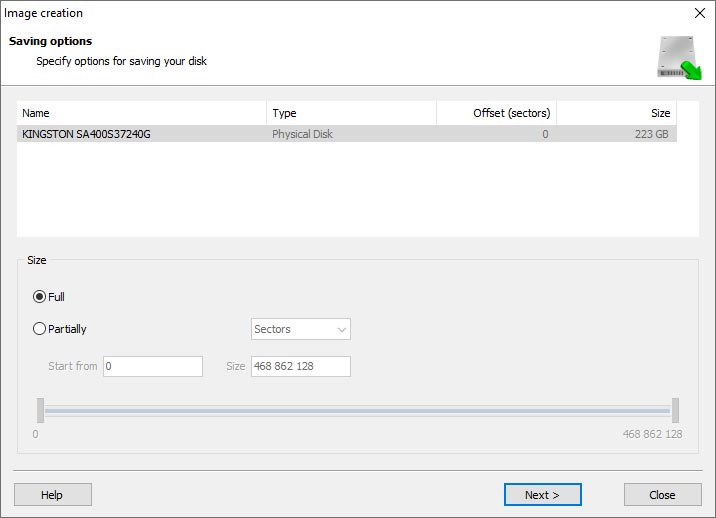
    Hetman RAID Recovery: Image Creation Wizard
  4. Choose the directory where the image will be saved. You may select any available disk connected to your PC or upload the image via FTP.
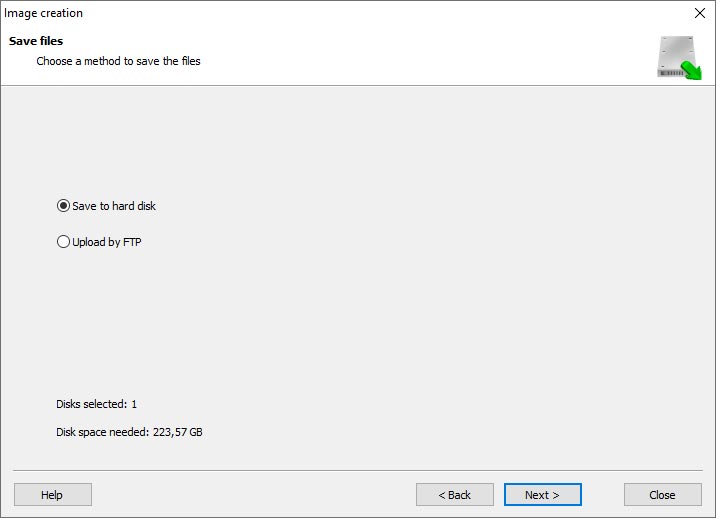
    Hetman RAID Recovery: Choose a disk or save the image via FTP

Where Are the User’s Files Actually Stored?

The Digiever DS-16349-RM Pro+ network-attached storage keeps OS Linux operating system files on a separate RAID 1 (mirrored) array. Usually, all NAS systems create several volumes on every hard disk, and the first of them takes up to 2 Gb of space. This is where operating system files are stored. Other volumes are united into a RAID array where user’s data is written.

RAID Recovery Software: Detailed Comparison

Product Operating system RAID controller support Supported file systems Virtual RAID controller support Data recovery from damaged RAID File preview
Hetman RAID Recovery Windows, Linux, MacOS Yes, over 100 controllers FAT, exFAT, NTFS, ReFS, APFS, HFS+, Ext4, Ext3, Ext2, ReiserFS, Btrfs, VMFS, Hikvision, XFS, UFS, ZFS Yes Yes Yes
DiskInternals RAID Recovery Windows Yes, over 10 controllers FAT, NTFS, Ext2/3/4, HFS+ No Yes Yes
R-Studio Windows, Mac, Linux Yes, over 20 controllers FAT, NTFS, Ext2/3/4, HFS+ Yes Yes Yes
UFS Explorer RAID Recovery Windows, Mac, Linux Yes, over 100 controllers FAT, NTFS, Ext2/3/4, HFS+ Yes Yes Yes
EaseUS Data Recovery Windows Yes, over 20 controllers FAT, NTFS, Ext2/3/4, HFS+ No Yes Yes
ReclaiMe Free RAID Recovery Windows Yes, over 100 controllers FAT, NTFS, Ext2/3/4, HFS+ Yes Yes Yes

Feedback

We will be happy to answer your questions!

Comments (3)

  • Hetman Software: Data Recovery
    Hetman Software: Data Recovery 9.08.2022 12:31 #
    If you want to ask a question about data recovery, from NAS DS-16349-RM Pro+, feel free to leave a comment!
  • Nowell Clutterbuck
    Nowell Clutterbuck 23.08.2023 12:47 #
    Is it possible to recover data from a NAS Digiever DS-16349-RM Pro+ device that has been affected by a controller card failure or interface problem?
    • Hetman Software
      Hetman Software 23.08.2023 13:00 #

      Yes, it is possible to recover data from a NAS Digiever DS-16349-RM Pro+ device that has been affected by a controller card failure or interface problem. However, the process of data recovery in such cases can be complex and may require professional assistance.

      Here are some steps you can take to attempt data recovery:

      1. Check for physical issues: Ensure that all connections are secure and cables are properly connected. Sometimes, loose connections or faulty cables can cause interface problems.
      2. Test the controller card: If you suspect a controller card failure, try replacing the card with a known working one to see if it resolves the issue. If the problem persists, the card may need to be repaired or replaced.
      3. Seek professional help: If you are unable to resolve the issue on your own, it is recommended to contact a professional data recovery service. They have specialized tools and expertise to handle complex data recovery situations. They can diagnose the problem, repair or replace any faulty hardware components, and attempt to recover the data from the NAS device.

      It is crucial to remember that attempting data recovery without proper knowledge and tools can potentially lead to further data loss. Therefore, it is advisable to seek professional assistance to increase the chances of successful data recovery.

Post comment
User
Your email address will not be published. Required fields are marked *

Vladimir Artiukh

Author: Vladimir Artiukh, Technical Writer

Vladimir Artiukh is a technical writer for Hetman Software, as well as the voice and face of their English-speaking YouTube channel, Hetman Software: Data Recovery for Windows. He handles tutorials, how-tos, and detailed reviews on how the company’s tools work with all kinds of data storage devices.

Oleg Afonin

Editor: Oleg Afonin, Technical Writer

Oleg Afonin is an expert in mobile forensics, data recovery and computer systems. He often attends large data security conferences, and writes several blogs for such resources as xaker.ru, Elcomsoft and Habr. In addition to his online activities, Oleg’s articles are also published in professional magazines. Also, Oleg Afonin is the co-author of a well-known book, Mobile Forensics - Advanced Investigative Strategies.

Share

Questions and answers

  • What is DLNA and how does it work in the context of network-attached storage (NAS) devices like the Digiever DS-16349-RM Pro+?

    DLNA stands for Digital Living Network Alliance. It is a set of guidelines and standards that allow various devices to connect and share media content over a network. DLNA enables devices such as smartphones, tablets, TVs, and network-attached storage (NAS) devices to communicate and stream media files seamlessly.

    In the context of NAS devices like the Digiever DS-16349-RM Pro+, DLNA allows the NAS to act as a media server. It means that the NAS can store media files such as photos, videos, and music and make them accessible to other DLNA-certified devices on the same network.

    Here's how DLNA works with NAS devices:

    1. Media Storage: The NAS device is equipped with storage capacity to store media files. Users can transfer their media content to the NAS, creating a centralized storage location.
    2. DLNA Server: The NAS acts as a DLNA server, where it organizes and indexes the media files stored on its storage. It creates a library of media content and makes it available to other DLNA-certified devices.
    3. DLNA Client: Other DLNA-certified devices, such as smart TVs, game consoles, or smartphones, act as DLNA clients. These devices can access the media library created by the NAS server.
    4. Media Streaming: When a DLNA client device wants to access media content, it sends a request to the NAS server. The server locates the requested media file and streams it to the client device over the network.
    5. Playback and Control: The DLNA client device receives the media stream and plays it back on its own interface. Users can control the playback, pause, rewind, or fast-forward the media content using the client device's interface.

    Overall, DLNA simplifies the process of sharing and streaming media content across different devices within a network, allowing users to enjoy their media files on various DLNA-compatible devices without the need for manual file transfers or complex setups.

  • How does the Digiever DS-16349-RM Pro+ utilize the DLNA protocol to enhance media streaming and sharing capabilities?

    The Digiever DS-16349-RM Pro+ utilizes the DLNA (Digital Living Network Alliance) protocol to enhance media streaming and sharing capabilities in the following ways:

    1. Media Server: The DS-16349-RM Pro+ acts as a DLNA media server, allowing users to store and organize their media files (such as photos, videos, and music) on the device. It indexes the media files and makes them available for streaming and sharing with DLNA-certified devices on the same network.
    2. Media Streaming: DLNA enables the DS-16349-RM Pro+ to stream media content to DLNA-certified devices, such as smart TVs, game consoles, and mobile devices, without the need for additional software or cables. Users can access their media files stored on the DS-16349-RM Pro+ and play them directly on their DLNA-enabled devices.
    3. Media Sharing: With DLNA, the DS-16349-RM Pro+ allows users to easily share their media files with other DLNA-certified devices on the network. Users can grant access to specific folders or files, enabling others to stream and view the shared media content on their own devices.
    4. Remote Access: DLNA also enables remote access to media files stored on the DS-16349-RM Pro+. Users can use DLNA-compatible apps or software on their mobile devices or computers to access and stream media files from the DS-16349-RM Pro+ over the internet, even when they are away from home.

    Overall, the DLNA protocol enhances media streaming and sharing capabilities of the Digiever DS-16349-RM Pro+ by providing seamless connectivity and compatibility between the device and other DLNA-certified devices on the same network.

  • Can you explain the role of DLNA in enabling seamless connectivity and media playback across different devices when using a NAS like the Digiever DS-16349-RM Pro+?

    DLNA, which stands for Digital Living Network Alliance, is a set of guidelines and standards that enable seamless connectivity and media playback across different devices within a home network. DLNA allows devices such as TVs, smartphones, tablets, and NAS (Network Attached Storage) devices like the Digiever DS-16349-RM Pro+ to communicate and share media content effortlessly.

    The role of DLNA in a NAS like the Digiever DS-16349-RM Pro+ is to act as a media server. It means that the NAS device stores and manages media content, such as videos, photos, and music, and makes it accessible to other DLNA-certified devices on the network.

    Here's how DLNA facilitates seamless connectivity and media playback:

    1. Media Storage: The Digiever DS-16349-RM Pro+ NAS provides a centralized storage location for all your media files. It allows you to store and organize your media library in one place.
    2. DLNA Certification: The Digiever DS-16349-RM Pro+ NAS is DLNA-certified, which means it adheres to the DLNA guidelines and standards. It ensures compatibility and interoperability with other DLNA-certified devices.
    3. Media Server: The NAS acts as a media server, making the stored media content accessible to other DLNA-enabled devices on the network. It indexes and categorizes the media files, making it easier for other devices to discover and access them.
    4. Media Playback: DLNA-certified devices such as smart TVs, game consoles, or smartphones can discover and access the media content stored on the Digiever DS-16349-RM Pro+ NAS. Users can browse and stream videos, view photos, or listen to music directly from their devices without physically transferring the files.
    5. Seamless Connectivity: DLNA allows for seamless connectivity between devices. For example, you can start watching a movie on your TV, pause it, and continue watching it on your tablet from where you left off. DLNA ensures a consistent user experience across different devices.

    In summary, DLNA enables seamless connectivity and media playback by providing a standardized framework for devices to communicate and share media content. By using a DLNA-certified NAS like the Digiever DS-16349-RM Pro+, users can easily access and stream their media files on various DLNA-enabled devices within their home network.
